

What Is Bleed in Printing?
By the PiCraft team · Updated
In short
Bleed is extra artwork past the final cut line so a small shift at the trimmer does not leave a white edge. PiCraft print files add 0.125 in (3 mm) bleed on cards and invitations, keep invitation text 0.25 in inside the trim line, and export at 300 DPI as PDF or JPG.
Make it with PiCraft
Business Card Maker
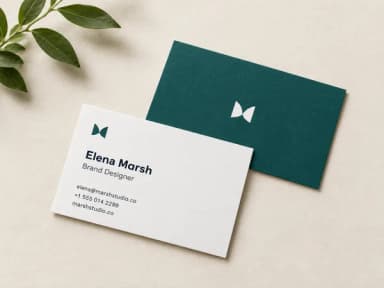
Enter your name and contact details, get a designed business card as a print-ready PDF in US or EU size.
Trim line, bleed and safe area
When a print shop cuts a stack of cards or invitations, the blade follows a trim line: the finished size you hold in your hand. Bleed is artwork that extends past that line on every side. After trimming, the background or border still reaches the physical edge even if the cut is slightly off.
The safe area (or safe zone) is the opposite idea. It is the region inside the trim line where text and logos should stay so nothing important is clipped. Background color, textures and decorative borders can sit in the bleed zone; names, dates and phone numbers should not.
PiCraft builds these margins into its print downloads. If you send a file to a commercial printer, upload the version with bleed unless their template tells you otherwise.
Bleed and safe-area numbers PiCraft uses
North American PiCraft files use 0.125 in bleed per edge. European business cards use 3 mm bleed, which is the same order of magnitude. Wedding and birthday invitations, event flyers and US Letter menus follow the inch-based bleed spec in the table below.
| Product | Trim (finished) size | File size with bleed | Safe area for text |
|---|---|---|---|
| US business card | 3.5×2 in | 3.75×2.25 in (0.125 in bleed) | Text kept inside the middle of the card; at least 3 mm (0.125 in) inside trim if you edit later |
| EU business card | 85×55 mm | 91×61 mm (3 mm bleed) | Same safe-area rule as US cards |
| Wedding invitation | 5×7 in | 5.25×7.25 in (0.125 in bleed) | Keep text 0.25 in inside the trim line |
| Event flyer (US Letter) | 8.5×11 in | 8.75×11.25 in (0.125 in bleed) | Keep headlines and dates away from the outer edge |
| Restaurant menu (Letter) | 8.5×11 in | 8.75×11.25 in (0.125 in bleed) | Menu lines need readable type, not edge-to-edge text |
For pixel dimensions at 300 DPI, see the dedicated business card size, wedding invitation size, flyer size and menu size guides. Those pages list trim sizes, bleed file sizes and export pixels in one place.
What happens when bleed is missing
If you export only the trim size with no bleed, any cut that lands a fraction of an inch early exposes the white paper underneath. That shows up as a thin unprinted strip on one or two sides. It is especially visible on dark or full-color backgrounds.
Designing important type flush against the trim line causes a different problem: the safe area exists because cutters vary. Text that looks perfect on screen can lose ascenders, descenders or punctuation after trim.
PiCraft keeps business card contact details in a centered safe rectangle and wedding invitation wording with margins of at least 8% on every side in the artwork, so routine trimming is less likely to touch names or dates.
- White slivers on colored edges: file had no bleed, or home printing could not reach the edge.
- Clipped letters at the bottom or sides: type or logos sat too close to the trim line.
- Mismatch with the printer's template: their safe zone differs from yours; compare before you order.
300 DPI and how it relates to pixels
DPI (dots per inch) is a print resolution label. At 300 DPI, each inch of trim width needs 300 pixels of image data. A 3.5×2 in US business card trim area is 1050×600 px at 300 DPI. With 0.125 in bleed on all sides, the file grows to 3.75×2.25 in, or 1125×675 px.
A 5×7 in invitation with bleed becomes 5.25×7.25 in at 300 DPI, which is 1575×2175 px. Screen previews use lower DPI files; always send the 300 DPI print PDF or JPG to the shop.
If a printer asks for "high resolution," 300 DPI at the bleed dimensions is the usual bar for small stationery and flyers. Lower resolution may look soft in person, especially on small type.
PDF with bleed vs JPG
PiCraft delivers both a print PDF with bleed and a 300 DPI JPG of the same artwork. Prefer the PDF when the printer accepts it. PDF keeps edges vector-sharp where the design uses flat color and gives the shop a single file that matches the trim and bleed dimensions.
Use the JPG when an online editor, copy center kiosk or home workflow only accepts images. The JPG is the same layout and bleed as the PDF; it is not a separate crop.
Always confirm format with your vendor. Some shops want PDF/X, others want PNG at exact pixel sizes. If their portal rejects a file, open their template and compare width, height and bleed to the table above before you re-export elsewhere.
The Business Card Maker downloads a US or European card with bleed plus a smaller web JPG that is not meant for trim-to-edge printing.
Home printing when you cannot print full bleed
Most home and office inkjet printers leave a non-printable margin. Even when your file includes bleed, the hardware may not lay ink to the physical edge of the sheet. That is normal.
For business cards, you can print the bleed file on heavy card stock, use a paper cutter or trimmer, and cut along the outer edge of the design so the card matches the intended trim size. Expect to discard the unprinted margin the printer left.
For invitations, some couples print one card per Letter sheet at 100% scale and trim manually, or order from a shop for full-bleed card stock. The wedding invitation size guide notes the difference between print files with bleed and the phone share image, which has no bleed and is for messages only.
- Print at 100% scale; do not "fit to page," which shrinks the card and changes the trim size.
- Use card stock rated for your printer; heavy stock may need a manual feed tray.
- Trim with a guillotine cutter or metal ruler and a sharp blade for straighter edges than scissors alone.
Pre-flight checklist before you order
- Open the print PDF or JPG and confirm the document size matches bleed dimensions (for example 3.75×2.25 in for a US card, 5.25×7.25 in for a 5×7 invitation).
- Proofread every name, number, date and URL character by character; reprint is costly for weddings and events.
- Compare your file to the printer's template: trim size, bleed amount and safe zone.
- Keep text at least 0.25 in inside the trim on invitations, and at least 3 mm (0.125 in) inside trim on cards if you edit in another app.
- Send the PDF with bleed unless the shop specifies otherwise; attach the JPG only if their system requires it.
- Order a proof or a small test batch before a large run, especially on colored or dark stock.
- Store the download and note which size region you chose (US vs European card, Letter vs A4 menu) so reorders match.
Printers publish their own templates and may use slightly different bleed or safe zones. When in doubt, ask the shop to confirm trim to finished size and bleed to be trimmed off.
Frequently asked questions
Is 0.125 inch bleed the same as 3 mm?+
They are close. PiCraft uses 0.125 in bleed on US-sized cards, invitations, flyers and Letter menus, and 3 mm bleed on European 85×55 mm business cards and A4 menus. Always match the region size you selected when you generated the file.
Which PiCraft file should I send to a print shop?+
Send the print PDF with bleed unless the printer asks for something else. The 300 DPI JPG is the same design for portals that only accept images.
Do I need bleed for digital-only invitations?+
No. Share images for phones are sized for screens and do not include bleed. Use bleed files only when something will be physically trimmed.
Can I add bleed in PiCraft after download?+
PiCraft already includes bleed on print exports. If you open the file in an editor, do not crop to trim size before upload, and keep new text inside the safe area rules above.
Ready to make one?
Business Card Maker
Enter your name and contact details, get a designed business card as a print-ready PDF in US or EU size.
Related guides
Business Card Size, Bleed and Print Resolution
US business cards are 3.5×2 in; Europe often uses 85×55 mm. Bleed, safe zones, 300 DPI pixel sizes, landscape layout, and matching your printer template.
Size guideWedding Invitation Size and Print Specs
Standard wedding invitation size is 5×7 in with 0.125 in bleed, 300 DPI and an A7 envelope. Trim, safe area, pixels, card stock and share-image sizes.
Size guideEvent Flyer Size for Print and Social Media
Event flyer sizes: US Letter 8.5×11 in with bleed for print, 1080×1350 px feed posts, 1080×1920 px Stories, and A4 dimensions in millimeters.
Size guideRestaurant Menu Print Size and Layout Limits
Restaurant menu size for print: US Letter 8.5×11 in or A4 with bleed, 300 DPI specs, about 14 lines per page, web JPG sizes, and local allergen rules to check.
Makers that help
Business Card Maker
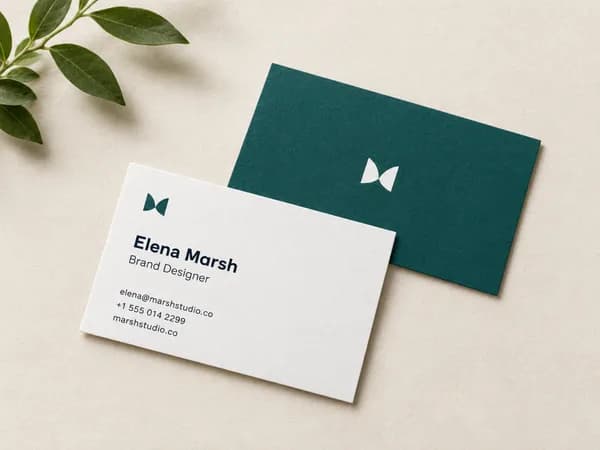
Enter your name and contact details, get a designed business card as a print-ready PDF in US or EU size.
Wedding Invitation Maker
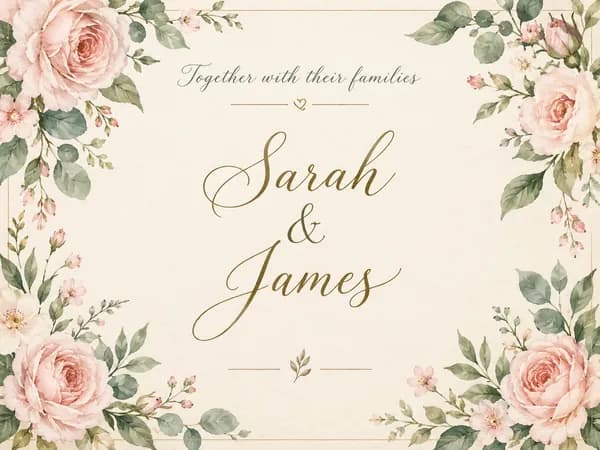
Printable 5×7 wedding invitations with your names, date and venue, plus a phone-ready version.

Birthday Invitation Maker
Themed birthday invitations for kids and adults, printable at 5×7 or shareable by text.

Event Flyer Maker
Posters and flyers for parties, gigs and community events, for print and Instagram.