Image to Image Generator
Add reference images, say what to change and download the original file: PNG, transparent PNG or animated GIF.
How it works
- 1
Add reference images
JPG, PNG or WebP photos that you own or have permission to use.
- 2
Say what to change
Write the instruction, then pick a model, a shape and a resolution.
- 3
Create and download
Most images take 10–35 seconds. You get the original file and a smaller JPG copy.
Made with the Image to Image Generator
Each image shows its model, shape, resolution and the exact words typed. Drag the handle on a single-photo example to compare.
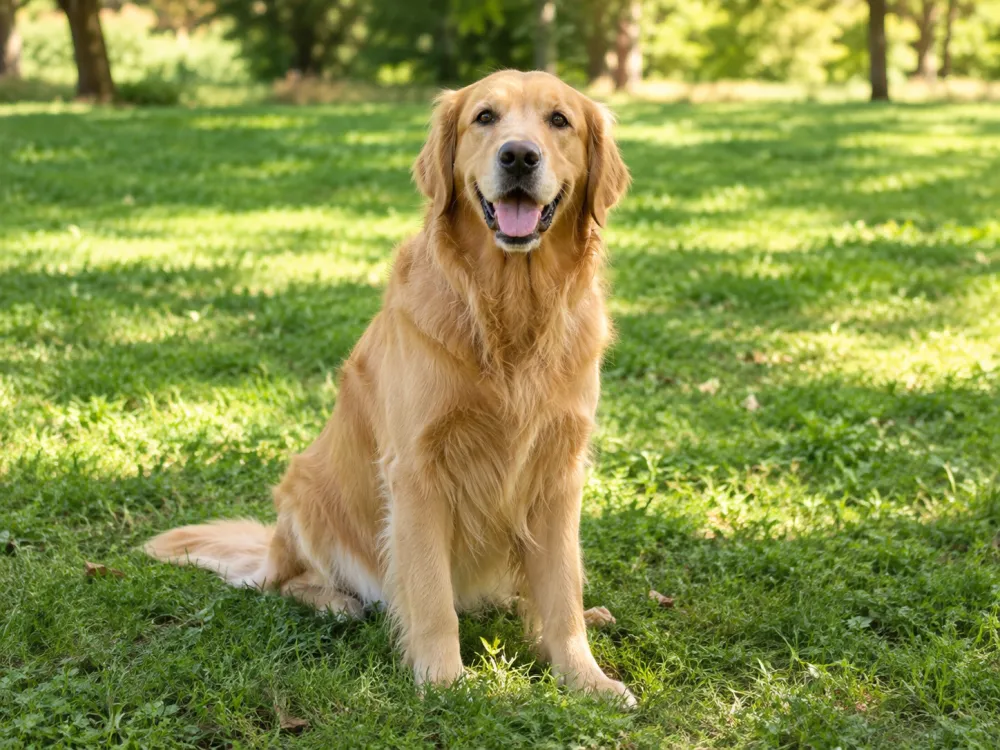 1
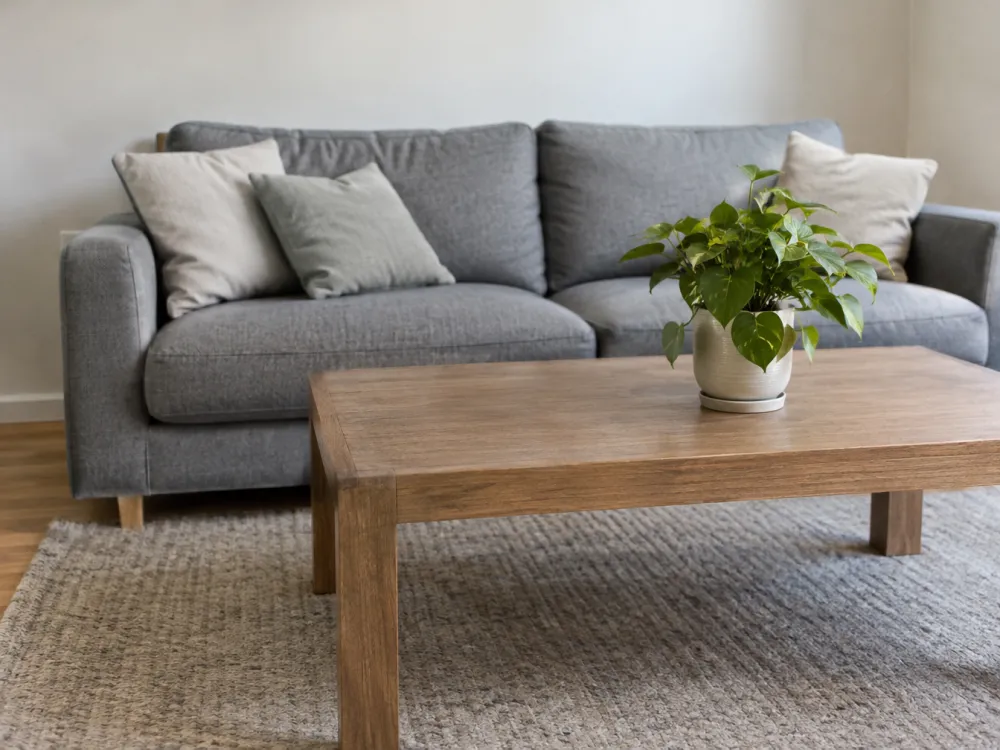 2
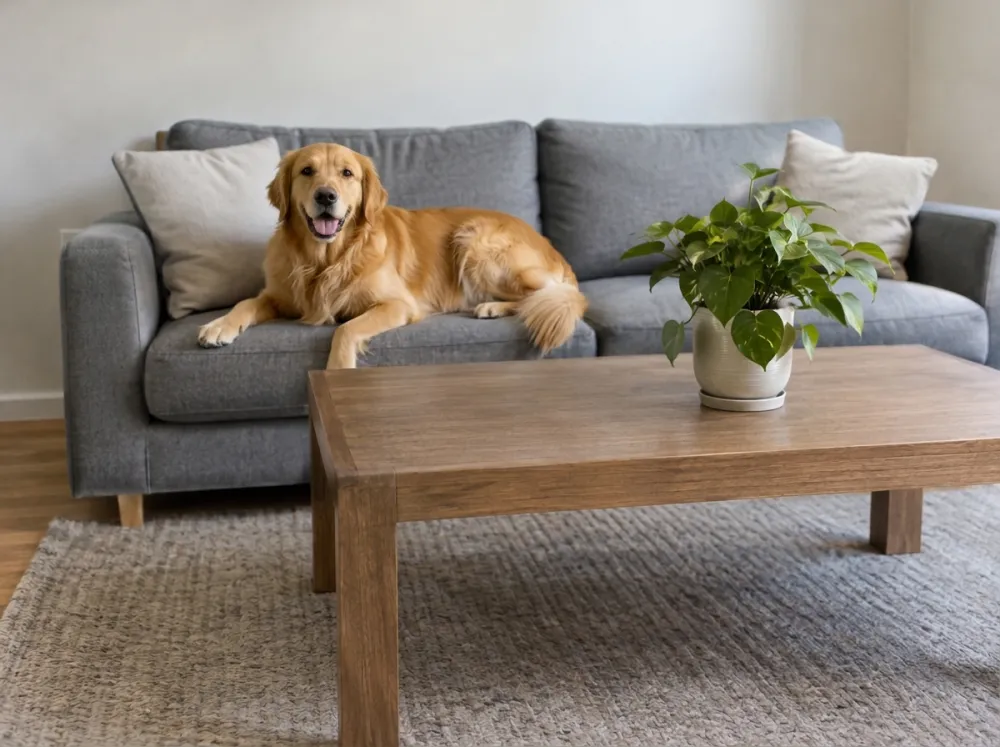
Nano Banana 2.1 · 4:3 · 1K
“Put the golden retriever from the first image on the gray sofa in the living room from the second image, natural window light”
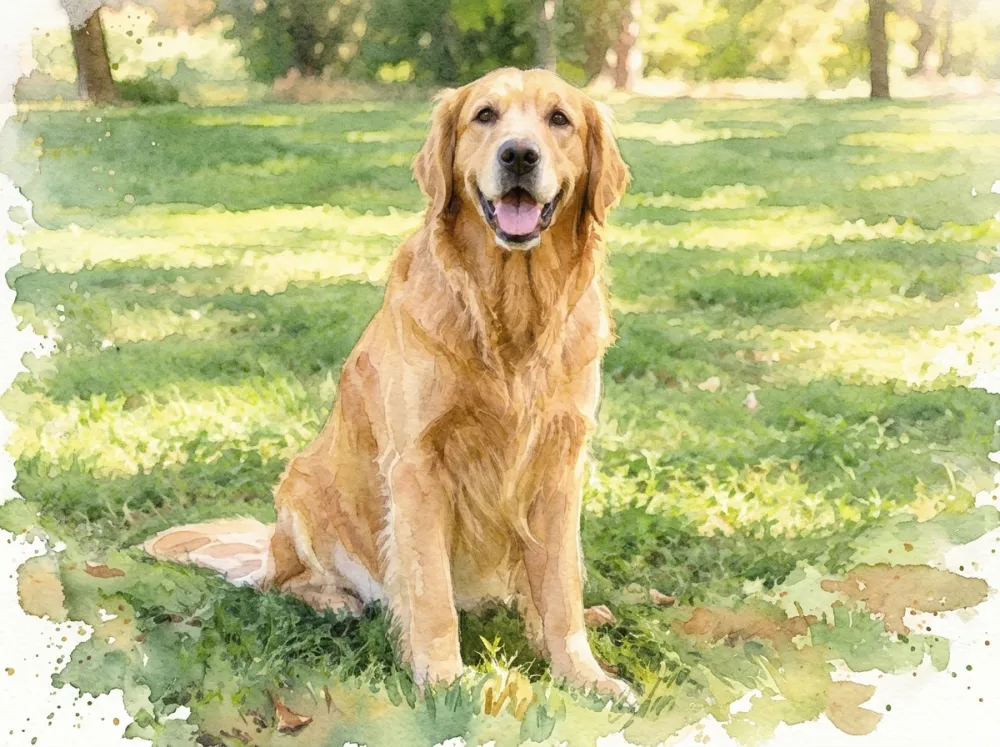
Nano Banana 2.1 · 4:3 · 1K
“Turn this into a watercolor painting and keep the composition”
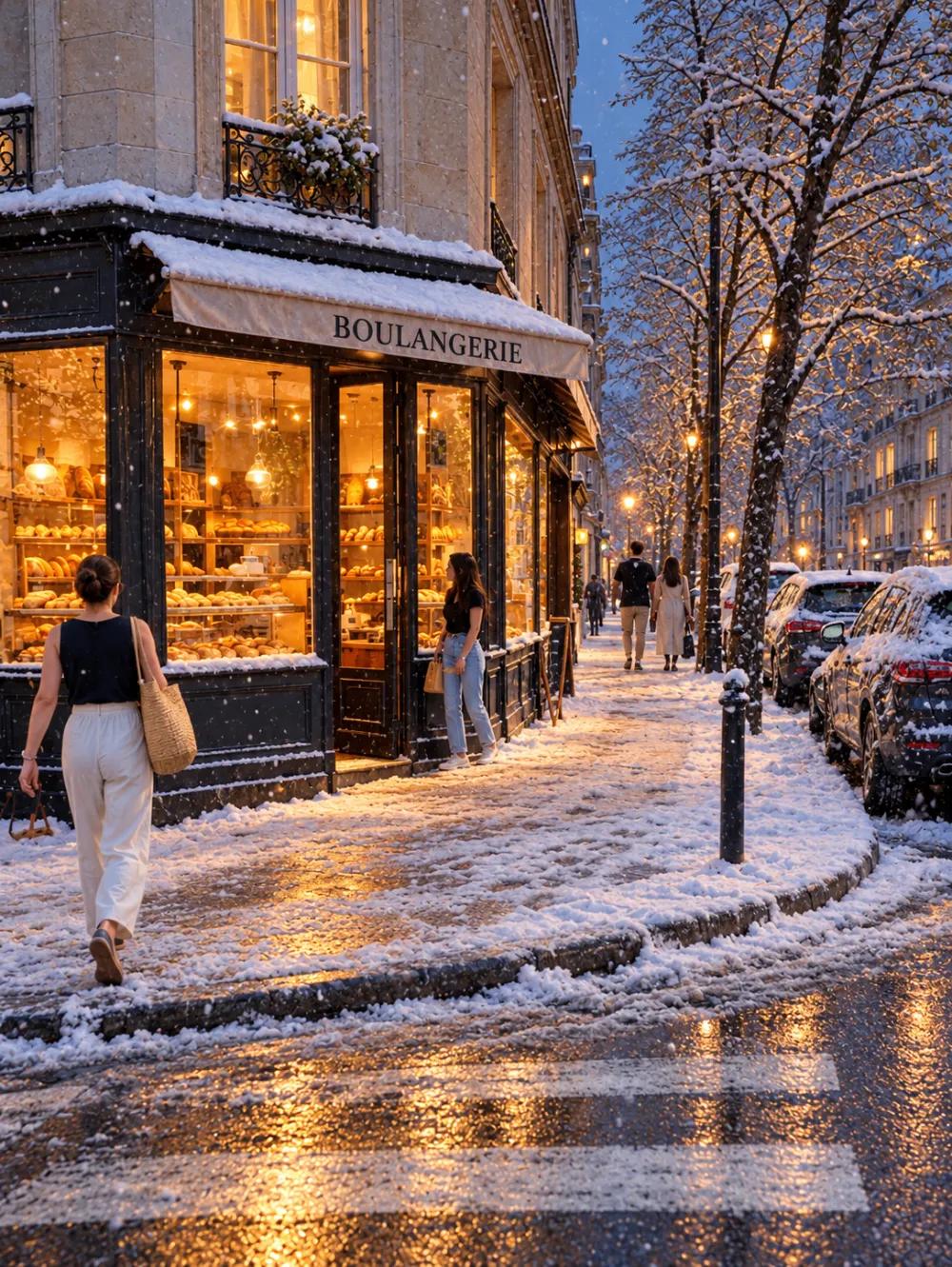
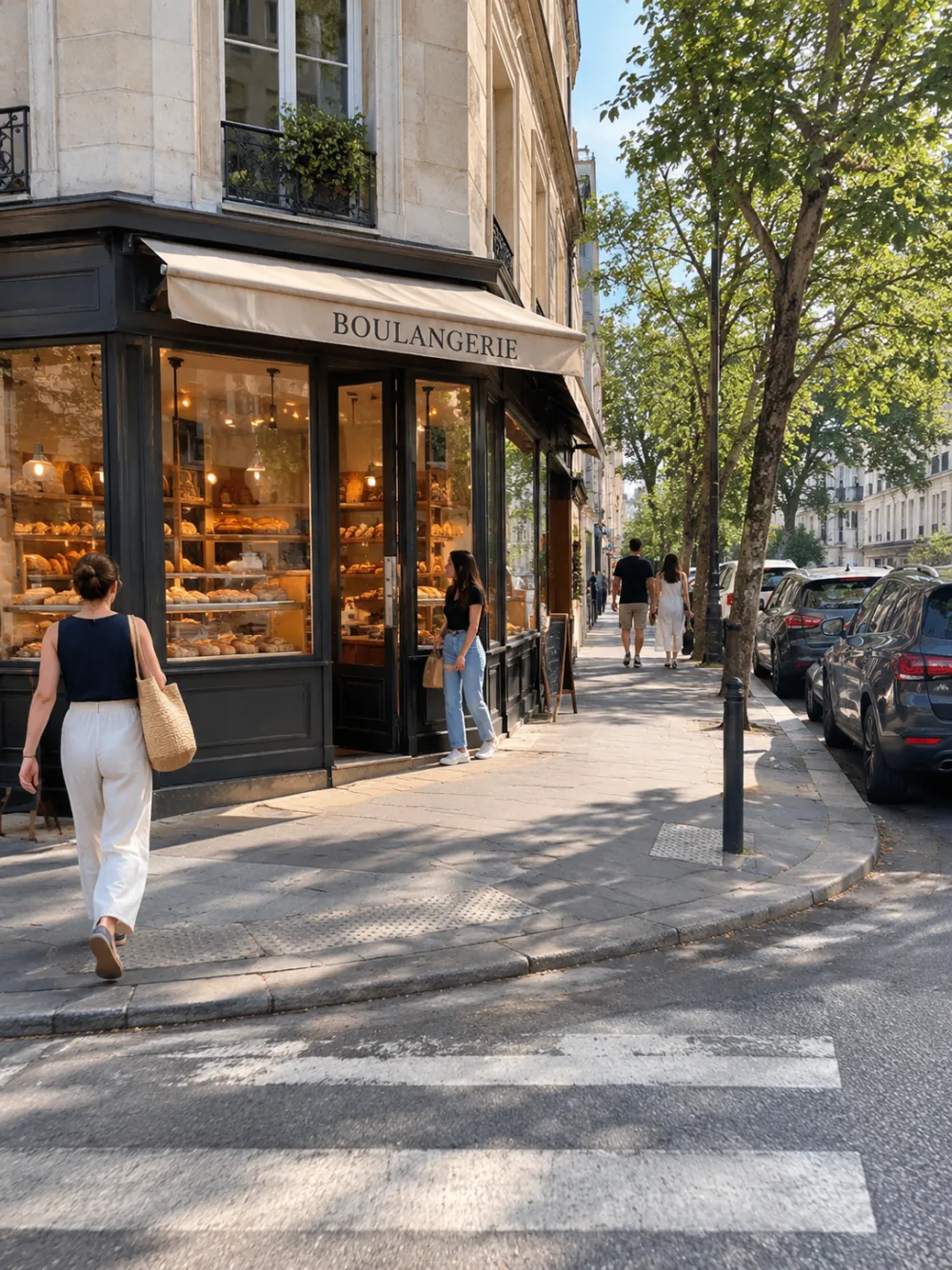
GPT Image 2.5 · 3:4 · 1K
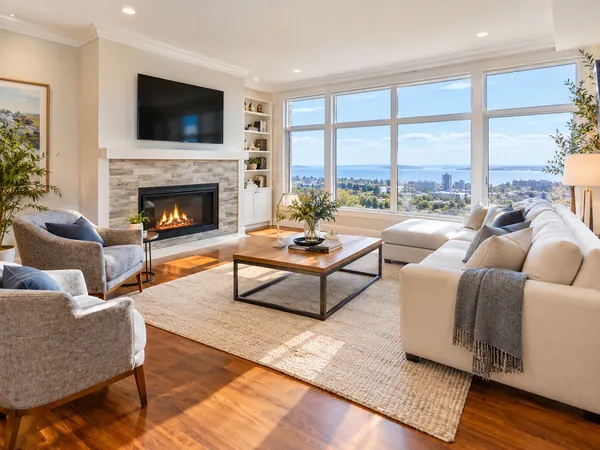
“Change the season to a snowy winter evening with lit windows and falling snow”
 1
 2
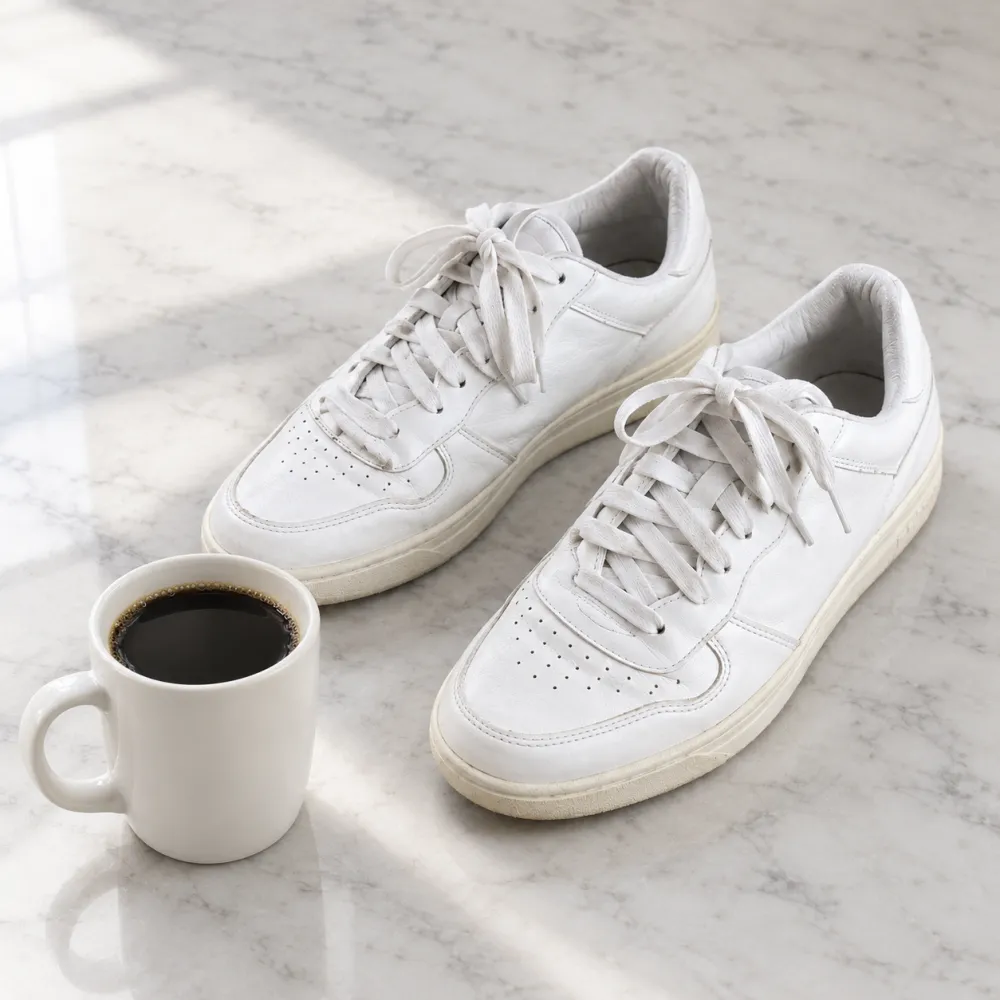
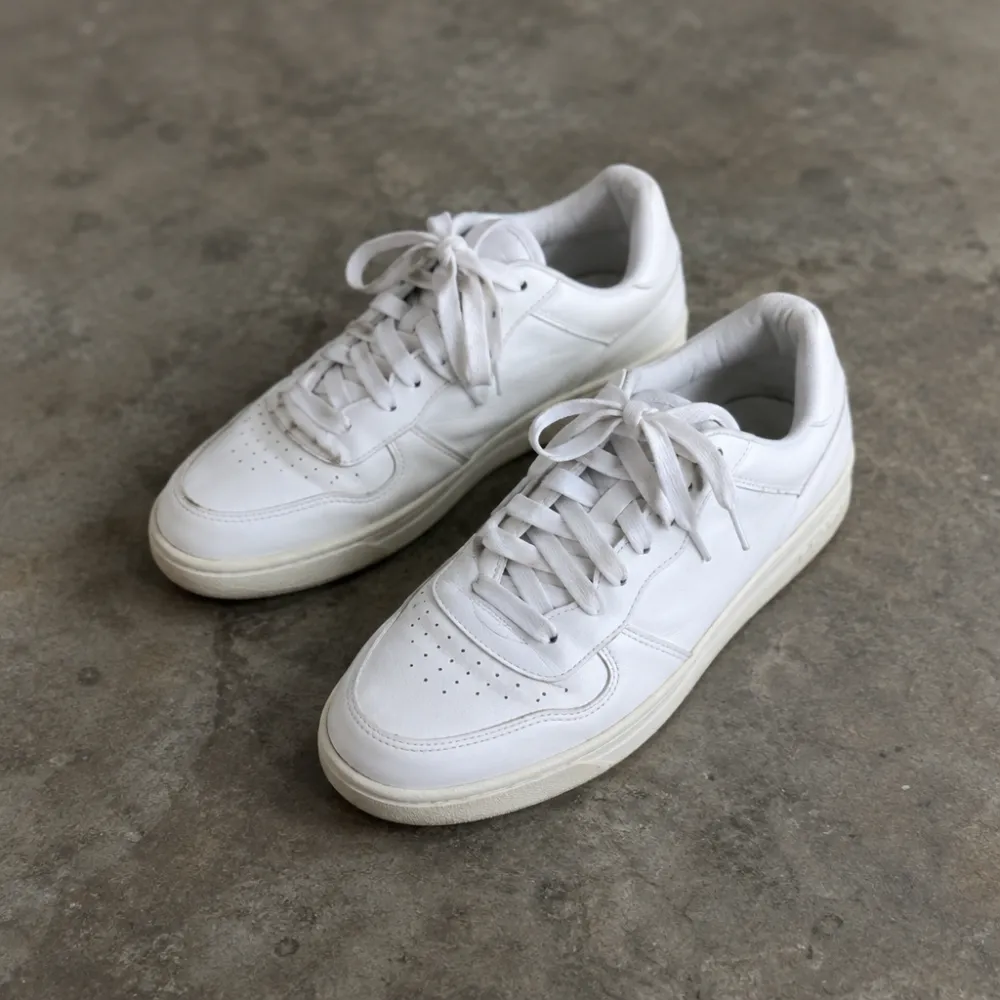
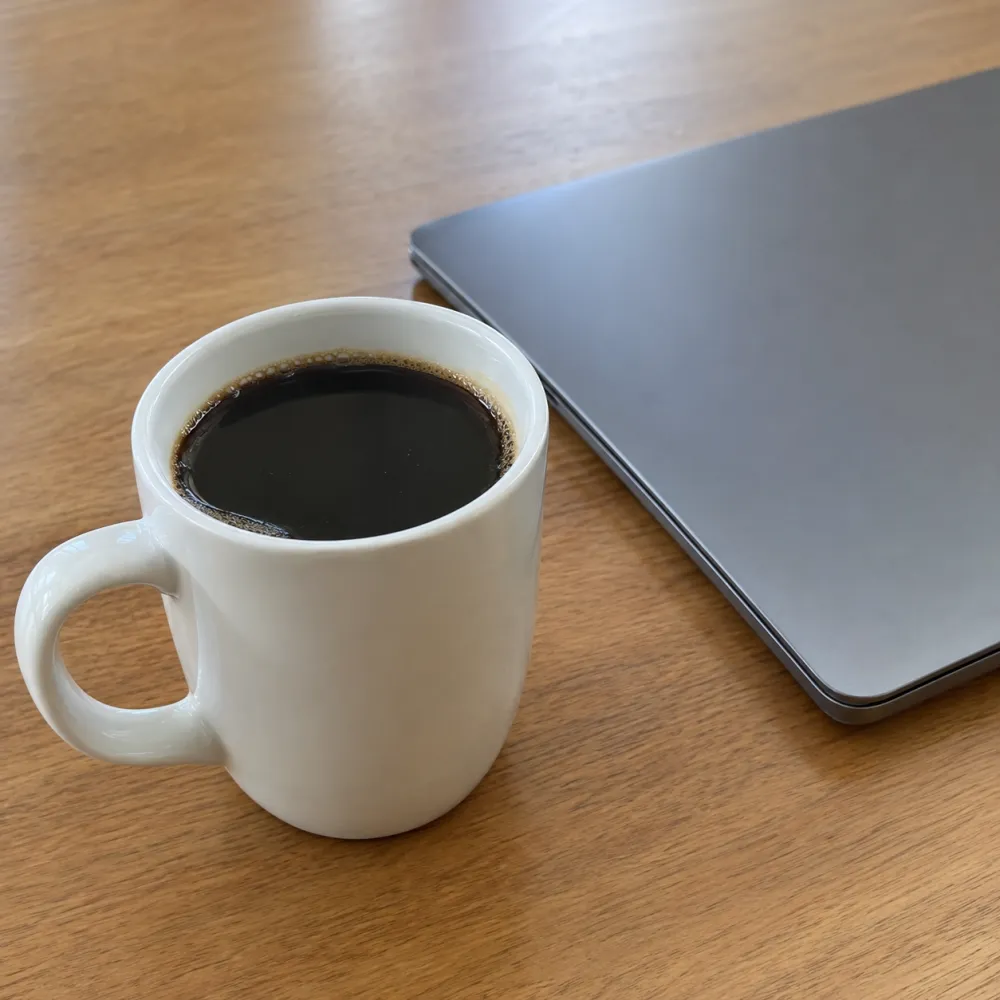
GPT Image 2.5 · 1:1 · 1K
“Arrange the white sneakers from the first image and the white mug from the second image together on a white marble counter, soft morning light, product photo”
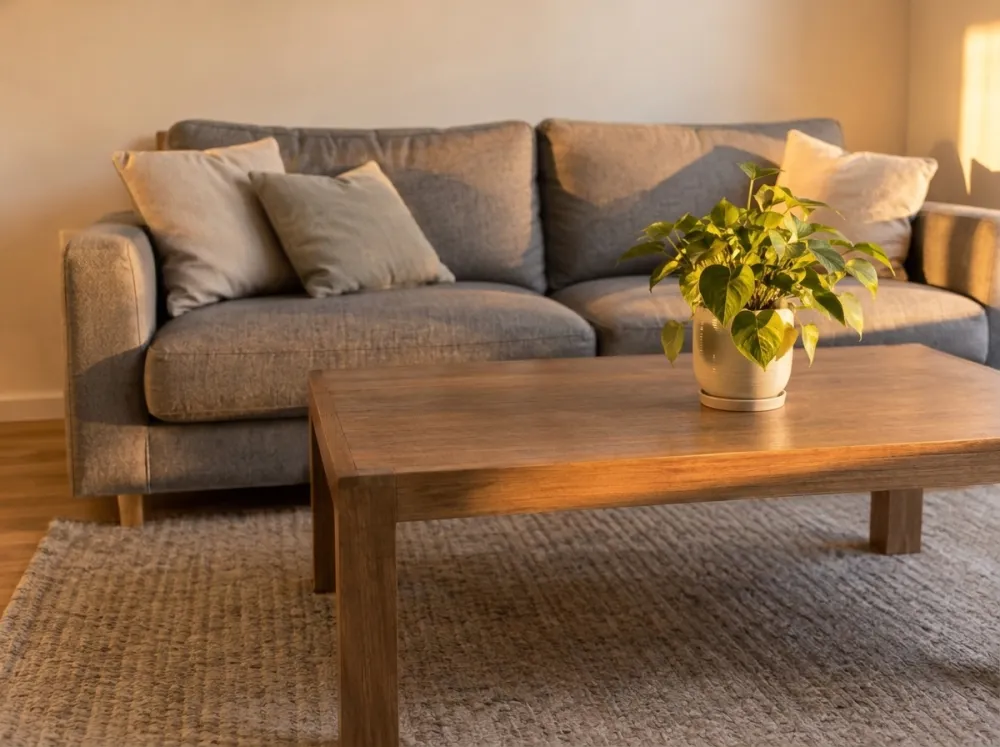
Nano Banana 2.1 · 4:3 · 1K
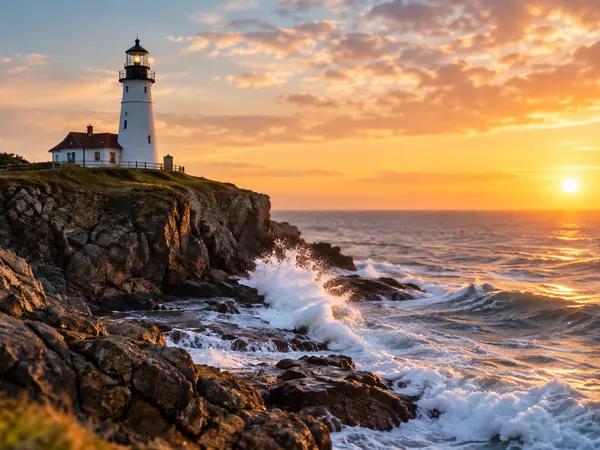
“Change the light to warm golden hour and keep everything else the same”
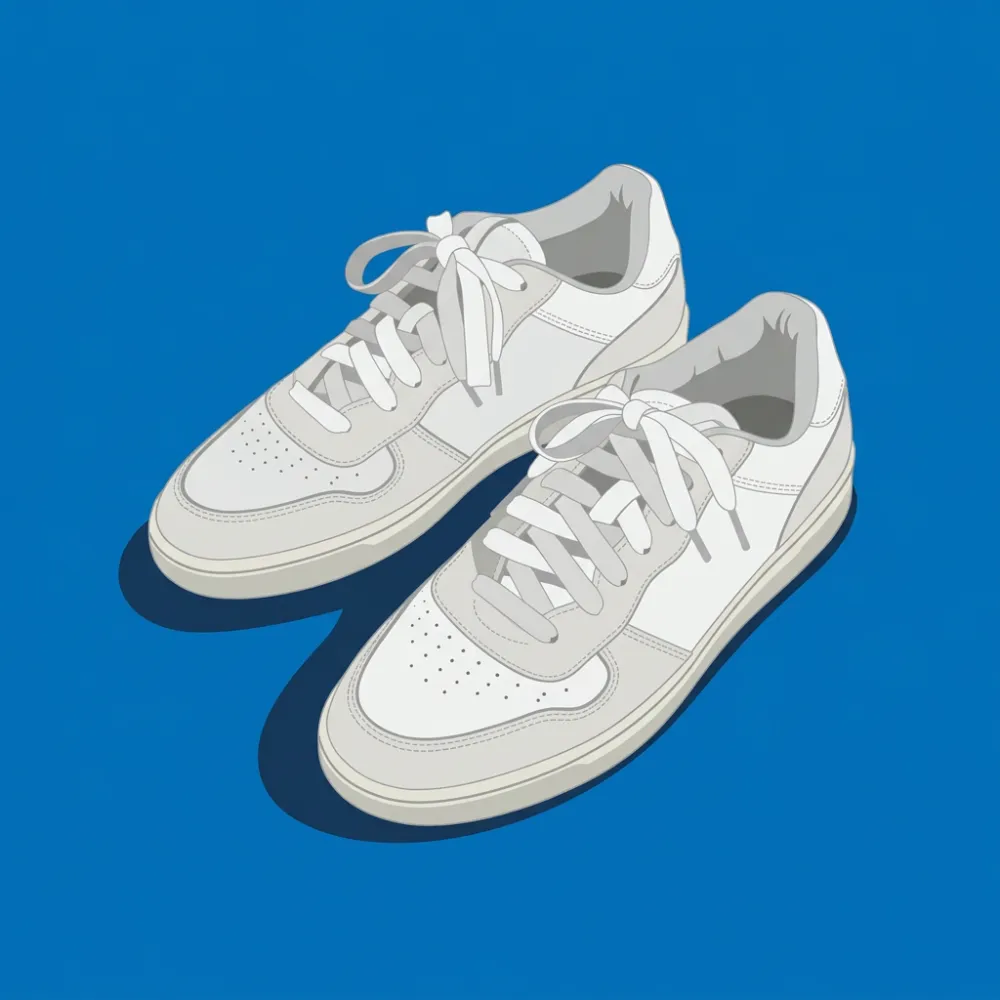
Nano Banana 2.1 · 1:1 · 1K
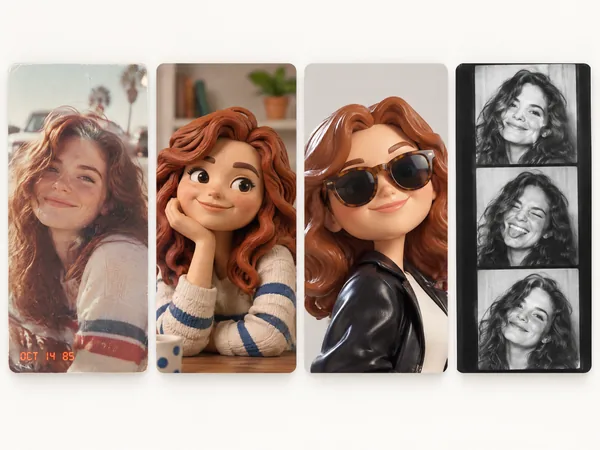
“Redraw this as a flat vector illustration on a bold blue background”
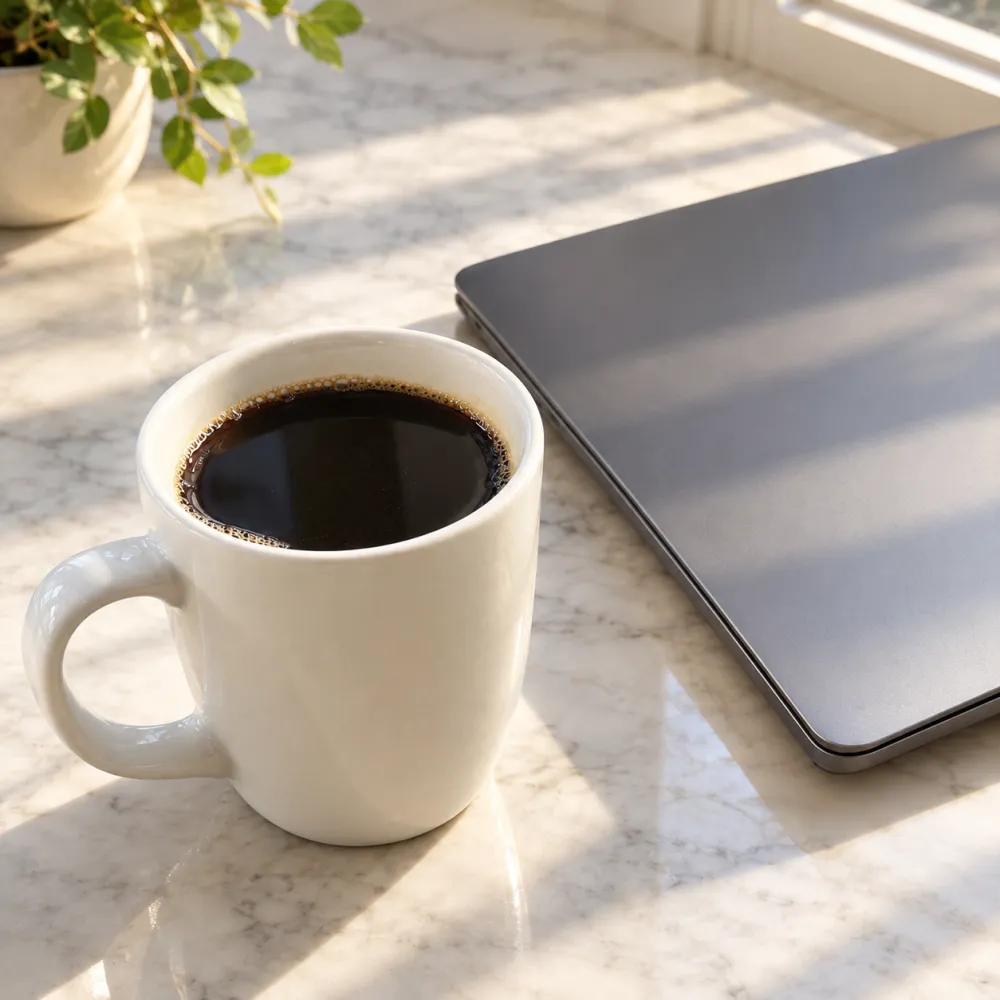
GPT Image 2.5 · 1:1 · 1K
“Move the mug and the laptop onto a white marble counter in soft morning sunlight”
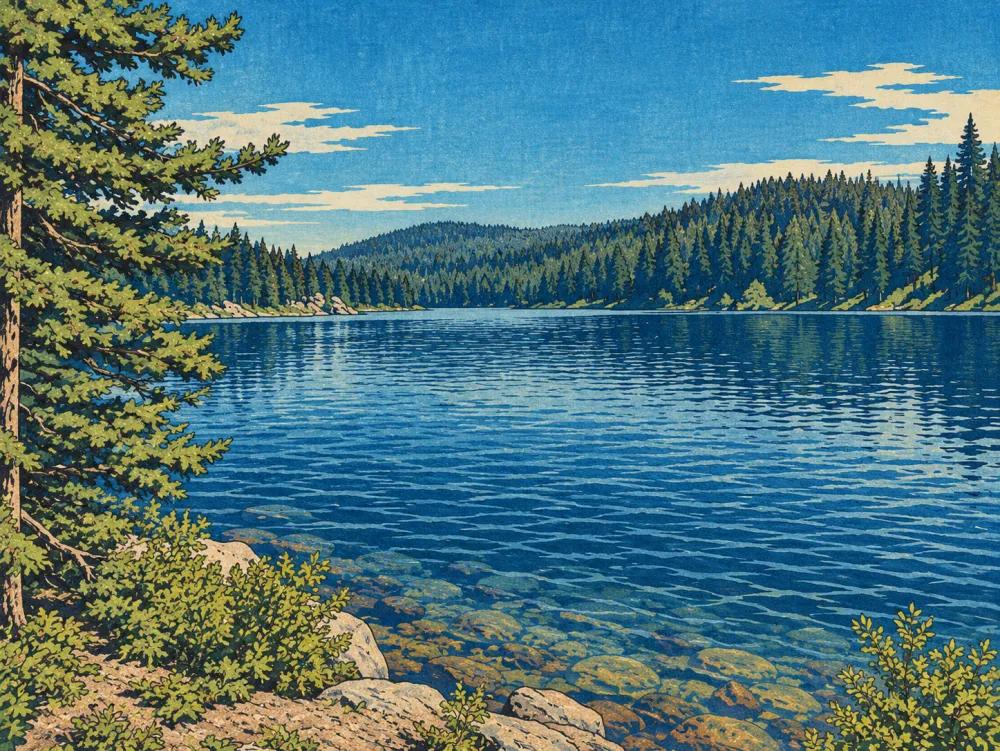
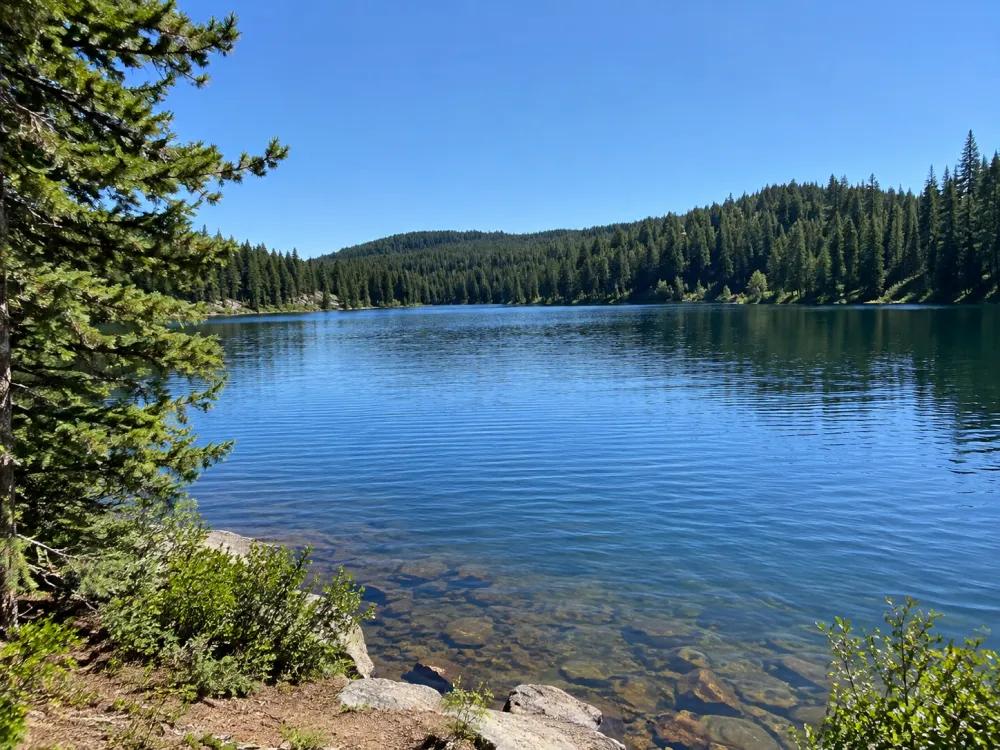
GPT Image 2.5 · 4:3 · 1K
“Make this a Japanese woodblock print”
How the Image to Image Generator works
You add one or more reference images, write what should change, and choose Nano Banana or GPT Image, a shape, a resolution and, with GPT Image, a transparent background or an animated GIF. PiCraft sends your images and your words to the model you chose, exactly as they are, and gives you back the file the model made. There is no style menu and no crop, so the instruction you write is what steers the result.
With one image, the model starts from your photo: it can restyle it, change the light or the season, or move the subject into another setting. With several images, it can take things from each one. Refer to the images by number, in the order they appear in the form, and say what to take from each: "the dog from the first image, the sofa from the second image".
Every image is a new attempt, so the result can differ from what you pictured, and a second try is normal. Each image uses credits (1 for 1K, 2 for 2K, 3 for 4K, and 2 or 3 for an animated GIF) however many references you add, and the credits come back automatically when an image can't be made.
What you get with the Image to Image Generator
The original file
You download the image as the model returned it, at the pixel size that belongs to the shape and resolution you chose. Nothing is cropped, recolored or compressed on our side.
A smaller JPG copy
Next to the original comes a JPG copy that is lighter to send, post or attach.
Several references at once
Add up to 10 reference images with Nano Banana or up to 16 with GPT Image, and combine a subject, a place, a product and a style in one result.
Your choice of model
Switch between Nano Banana, GPT Image 2.6 and GPT Image 2.5 for the same photos and the same instruction, and compare the results yourself.
A transparent background
Choose Transparent with GPT Image to get the subject as a PNG with no background, plus a JPG copy on white.
An animated GIF
Choose Animated GIF with GPT Image 2.6 to turn a photo into a short looping GIF, with 6, 9 or 12 frames.
Shapes and resolutions you choose
Keep the framing of your photo by picking its shape, or pick a new one. Nano Banana goes from 1K to 4K and GPT Image from 1K to 2K, with the price shown next to each.
A record of your images
Finished images are listed under My files in the same browser for 90 days.
Models, shapes and resolutions
| Model | Made by | Reference images | Resolution, cost and shapes | Also makes |
|---|---|---|---|---|
| Nano Banana 2.1 | Up to 10 |
| – | |
| GPT Image 2.6 | OpenAI | Up to 16 |
|
|
| GPT Image 2.5 | OpenAI | Up to 16 |
|
|
- Reference images: Nano Banana takes up to 10 and GPT Image up to 16. Each photo is resized to fit within 2048 pixels before it is sent, which is more than the models need.
- Auto lets the model choose the shape. GPT Image makes Auto images at 1K only; pick a shape to get 2K with GPT Image, or 2K and 4K with Nano Banana.
- The price depends on the resolution, not on the model or how many images you add: 1K costs 1 credit, 2K costs 2 credits and 4K costs 3 credits (GPT Image goes up to 2K). A transparent background costs the same as an image. An animated GIF costs 2 credits for 6 frames and 3 credits for 9 or 12 frames. If an image can't be made, the credits are returned automatically.
- A GIF is made at its own size, which shrinks as you add frames: a square GIF is about 960 px with 6 frames, 930 px with 9 and 820 px with 12 (measured in November 2026). A GIF cannot be edited again here; keep the picture you started from if you want to make another version.
- You get the original file exactly as the model made it, plus a smaller JPG copy for sharing. A transparent PNG keeps its transparency, and its JPG copy is on white. A GIF comes as the GIF only. Nothing is cropped or resized.
What people use the Image to Image Generator for
Restyle a photo
Turn a snapshot into a watercolor painting, a flat vector illustration or a Japanese woodblock print while keeping the composition.
Change the light or the season
Move a flat midday photo to golden hour, or a summer street to a snowy evening, and keep the rest of the scene.
Try a product in a new setting
Put a mug, a pair of sneakers or a lamp onto a marble counter or a wooden shelf, in the light you choose. Take the idea to a photographer, or use the Amazon Product Photo Maker when a marketplace needs a pure white background.
Combine things from several photos
Use two or more references to put a pet in a room, a product next to another, or a sofa from one photo into the room of another, as long as you have the right to use every photo.
Make a new picture from another picture
Upload one photo and describe the picture you want made from it: the same scene as a painting, the same product in a different setting, the same room in another season. Your photo sets the subject and the layout, and your words set the rest.
Redraw a sketch
Photograph a rough drawing, upload it and describe the finished version, such as a clean illustration or a 3D render.
Cut a subject out as a transparent PNG
Add a photo of a product, a pet or an object, say which subject to keep and choose Transparent. The PNG has no background, so it can go onto a page, a mockup or a sticker sheet.
Bring a photo to life as a GIF
Turn a picture of a pet, a mascot or a drawing into a short loop: it waves, blinks or tilts its head. Use a photo you own or have permission to use.
Tips for better results
- 1
Use sharp, well-lit references
The model can only work with what it sees. A clear photo with the subject in plain view gives it more to hold on to than a dark or blurry one.
- 2
Say what stays the same
Phrases such as "keep the composition" and "keep everything else the same" tell the model what not to touch. Then say what to change in one sentence.
- 3
Refer to images by number
With several references, write "the first image" and "the second image", in the order shown in the form. Say what to take from each one.
- 4
Say where each thing goes when you merge photos
To combine references, name what to take from each one and where it should end up: "the lamp from the second image on the desk in the first image". A short, specific sentence gives the model less to guess.
- 5
Pick the shape of your photo to keep its framing
If you edit one photo and want the same framing, choose its shape, such as 4:3 or 3:2. Choose a different shape when you want the scene recomposed.
- 6
Change one thing at a time
If the result misses, adjust one part of the instruction and create it again. That shows you what each word does and saves credits.
- 7
Explore small, finish large
Try ideas at 1K, then create the final version at 2K or 4K. A larger file is a new image, not an enlargement of the first.
- 8
For a transparent PNG, name the subject to keep
Write "keep only the mug and remove everything else" and choose Transparent. A subject with a clear outline cuts out more cleanly than one that blends into its background; check the edge on a light and a dark background.
- 9
For a GIF, describe the motion in order
Say what moves and in what order: "the dog tilts its head, then wags its tail". Keep the motion simple, and keep the subject large in the photo, because the frames are drawn small.
Nano Banana or GPT Image?
These models all edit photos and combine references, and none of them is better at everything. These are the practical differences on PiCraft. For anything else, try your own photos on each.
- Nano Banana 2.1, by Google
- Takes up to 10 reference images, makes 14 shapes plus Auto, including 4:5, 5:4 and the strips 1:4, 4:1, 1:8 and 8:1, and offers 4K for every shape.
- GPT Image 2.6 and 2.5, by OpenAI
- Both take up to 16 reference images and make 14 shapes plus Auto, including 4:5, 5:4 and the wide 2:1 and 3:1, at 1K and 2K (Auto at 1K only). Both can leave the background transparent. Only GPT Image 2.6 makes animated GIFs.
- The price
- The same for every model at the same resolution, and the same however many references you add: 1 credit at 1K, 2 at 2K and 3 at 4K (GPT Image goes up to 2K). A transparent background costs the same as an image, and an animated GIF costs 2 credits for 6 frames and 3 for 9 or 12.
- How long each takes
- Measured on PiCraft in November 2026, at 1K: Nano Banana 2.1 took 10 to 34 seconds over 27 images, about 18 on average. GPT Image 2.5 took 13 to 56 seconds over 11 images, and 10 of them finished in under 30 seconds. In our own tests GPT Image 2.6 took about 20 to 40 seconds at 1K and 2K, with a transparent background and for GIFs. We do not have enough 4K runs to give a figure, so expect those to take longer. Times change with load. The earlier timings come from edits with reference images, which is what this page does.
- When the result matters
- Create the same instruction with each model and keep the better one. Results vary from image to image, so one try is not a verdict on a model.
Before you download
- Compare the result with your references: did the subject keep the details that matter, such as colors, logos and proportions?
- Look closely at faces, hands and small objects, which is where AI mistakes show first.
- Read every letter of any text that appears in the image.
- Confirm that the shape and the pixel size shown next to the download match the place the image will go.
- If you edited a photo of a place or a product that is for sale, make sure the result does not misrepresent what the buyer will get, and label it as edited where the platform requires it.
- Download the files now. Generated files are deleted after 90 days.
What the Image to Image Generator can't do
- The model redraws the image, so small details can change even when you ask it not to. Check what matters, and create it again if something important is off.
- A result is never exactly the same twice. For a series, keep using the earlier result as a reference.
- Every model applies its own safety checks and can refuse a request. When that happens no image is made and the credits are returned.
- The pixel size is set by the model. If a place needs an exact size or a pure white background, use the matching maker, which crops and exports to that spec.
- Only use photos you own or have permission to use. Impersonating real people or making images that mislead people is not allowed under the terms, and you are responsible for what you create and publish.
- A GIF is a short loop drawn on one sheet, not a video. The frames are small (about 960 px square for 6 frames, 820 px for 12), the motion is simple, and the subject can change slightly from frame to frame.
- A transparent background comes from GPT Image only, and GIFs from GPT Image 2.6 only. Nano Banana and GPT Image 2.5 do not make GIFs.
- PiCraft makes PNG, JPG and GIF files. It does not make SVG or other vector files.
Frequently asked questions
Is the Image to Image Generator free?+
You can try it free. Every new visitor gets a few free credits that work on any PiCraft tool. A 1K image costs 1 credit, a 2K image 2 credits and a 4K image 3 credits, and an animated GIF 2 or 3 credits, however many reference images you add. You do not need an account.
How many reference images can I add?+
Nano Banana takes up to 10 reference images and GPT Image up to 16. If you switch to a model that takes fewer than you have added, the form asks you to remove the extra ones before you create the image.
How do I use several images in one instruction?+
Refer to them by number, in the order they appear in the form. For example: "Put the dog from the first image on the sofa in the second image, in soft window light." Say what to take from each image, and what should stay the same.
Which model should I choose, Nano Banana or GPT Image?+
Both edit photos and combine references, and the best way to choose is to try your own photos on each. Nano Banana offers more shapes and 4K for every shape. GPT Image (2.5 and 2.6) takes more reference images, makes 14 shapes at 1K and 2K and can leave the background transparent, and GPT Image 2.6 can make animated GIFs. Create the same instruction with each and keep the one you prefer.
Can I choose a style?+
There is no style menu. You write the look into your instruction, for example "redraw this as a flat vector illustration" or "make this a Japanese woodblock print", and the model follows it.
Can I cut out a subject on a transparent background?+
Yes, with GPT Image. Add your photo, say which subject to keep, such as "keep only the mug, remove everything else", and under Result choose Transparent. You download a PNG with a see-through background, and a JPG copy on white. It costs the same credits as a normal image. If you only want the background removed from a finished picture, the Remove background button under a result does that.
Can I turn a photo into an animated GIF?+
Yes, with GPT Image 2.6. Add the photo, under Result choose Animated GIF, pick 6, 9 or 12 frames and a speed, and describe the motion: "the dog tilts its head, then wags its tail". The GIF loops. It costs 2 credits for 6 frames and 3 for 9 or 12. The frames are drawn on one sheet, so more frames means a smaller picture, and the subject can change slightly from frame to frame.
What is the difference between GPT Image 2.5 and 2.6?+
On PiCraft they offer the same options (14 shapes, 1K and 2K, a transparent background and up to 16 reference images), and GPT Image 2.6 can also make animated GIFs. Which one draws your idea better depends on the idea, so create the same description with both and keep the one you prefer.
Will the result keep my subject and layout?+
Usually, when you say so. Phrases such as "keep the composition" or "keep everything else the same" help, and so do sharp, well-lit reference photos. Because each result is a new image, details can still change, so create it again if something important is off.
Which photos can I upload?+
Only photos you own or have permission to use. Do not upload photos of other people without their permission, and do not use the tool to impersonate anyone or to mislead people. JPG, PNG and WebP files are accepted, and large photos are resized in your browser before they are uploaded.
Which shape and resolution should I pick?+
Pick the shape of the place the image will go: 2:3 for Pinterest Pins, 4:5 for portrait posts, 9:16 for full-screen vertical posts, 16:9 for video thumbnails, 1:1 for squares. If you edit one photo and want to keep its framing, choose the photo's own shape, such as 4:3 or 3:2. GPT Image goes up to 2K and Nano Banana up to 4K.
What happens if the model refuses my request?+
Every model applies its own safety checks and can refuse some requests or return an error. When that happens, no image is made and your credits are returned automatically. Reword the instruction or try another photo.
Are my uploaded photos kept?+
Your reference photos are sent to the third-party AI providers that run the models, and they may keep them temporarily under their own policies. The images you create are deleted from PiCraft after 90 days. See the privacy policy for the details.
How long does an image take?+
Most images take 10–35 seconds at 1K, with any model. In our own tests in November 2026, GPT Image 2.6 took about 20 to 40 seconds at 1K and 2K, with a transparent background and for GIFs. 4K images take a little longer. You can keep the tab open, and finished images are also listed under My files.
Should I label the images as AI-generated?+
Often, yes. Many platforms ask you to label realistic AI images, and an edited photo can mislead people if it is shown as untouched. Real estate listing services and marketplaces have their own rules on edited photos, so check them before you post.
How do I create an image from another image with AI?+
Upload the picture you want to start from, write what the new image should look like, and press Create. For example: "Turn this photo into a watercolor painting and keep the composition." The model reads your photo and your words together and draws a new image, so the result is a fresh picture, not a filter over the old one.
Is image to image the same as photo to photo or picture to picture?+
Yes, they are different names for the same thing: you give the AI a picture and an instruction, and it makes a new picture from them. PiCraft calls it image to image. The photo you start from is called a reference image, and you can add more than one.
Can I combine two photos into one picture?+
Yes. Add both photos and say what to take from each, by number: "Put the dog from the first image on the sofa in the second image." You can add up to 10 reference images with Nano Banana and up to 16 with GPT Image. Only combine photos you own or have permission to use.
Can I start from a description instead?+
Yes. The Text to Image Generator draws an image from words alone, with the same three models and the same choice of shape and resolution.
Last updated: