

Photo Trends: Turn One Photo into a New Look
Trends in photo editing move fast, but most of them are the same move: take a photo you already have and redo it in a recognizable style. The Photo Trend Maker does that for 13 looks, from a faded 1980s snapshot and a photo booth strip to a clay figure, a toy head and a marble statue. You upload one photo, pick a look and a size, and download a finished JPG.
It is built for images that get posted, so the size is part of the choice. The default is a full-screen 9:16 vertical image, and you can switch to a 2:3 Pinterest Pin, a 3:4 portrait post or a 1:1 square. There is no prompt to write, and the maker keeps the subject recognizable, which matters most when the subject is you or your pet.
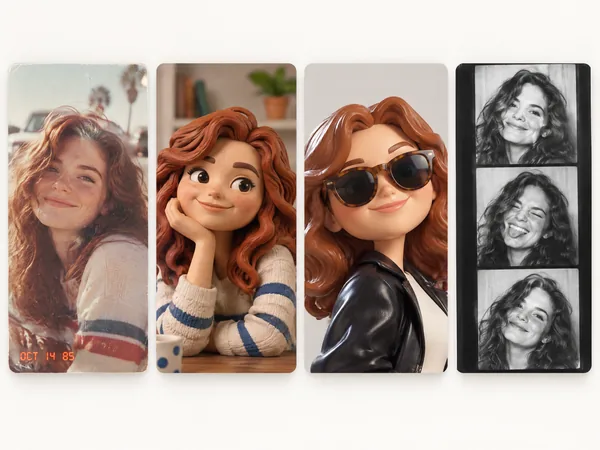
The 13 looks
- Film and camera looks: 80s Flashback, 70s Slide Portrait, Y2K Digital Camera, Night Out Flash and Photo Booth Strip. They copy the flaws of old cameras: grain, flash glare and faded color.
- Handmade and toy looks: Claymation World, Felt Miniature, Bobblehead and 3D Toy Avatar. They rebuild you or your pet as a physical object.
- Game, print and art looks: 16-bit Arcade Fighter, Blueprint Poster, Fantasy Newspaper and Marble Statue. Several of them draw short words into the image, so proofread the result.
Choose the size before you create
The shape you pick changes how the image is composed, so it is better to choose it first than to crop afterwards. The Photo Trend Maker offers 9:16 (1080×1920) for full-screen vertical images, 2:3 (1000×1500) for Pinterest, 3:4 (1080×1440) for portrait posts and 1:1 (1080×1080) for squares.
Pinterest recommends a 2:3 aspect ratio, or 1000×1500 pixels, for standard image Pins, and says taller images might get cut off in feeds. Its ad specs page also lists 1080×1920 (9:16) for full-bleed images and videos, which is why 9:16 is the default size here.
Before you upload a photo
- Use photos you own or have permission to use, and ask before you restyle someone who can be recognized.
- Do not upload photos of children unless you are their parent or guardian.
- Pick a clear, well-lit photo where the face or the pet is large. A blurry or very dark photo gives a weak result.
- Read any text the result draws into the image, such as headlines or labels, before you post it.
- Your photo is sent to our AI provider to create the image and is not shown to other visitors. The Privacy Policy explains how long data is kept.
Questions
Is this one tool or many?+
One maker with 13 looks. You choose the look and the size in the same form, and each look has its own page with examples and tips, so you can start from the one you want.
Will the result look like me?+
The maker is built to keep your face shape, skin tone, age and hair color, but AI likeness is never exact. Looks that turn you into an object, such as a bobblehead or a clay figure, keep the spirit of the face more than the exact details. Generate again if a result is off.
Which size is best for Pinterest?+
Choose 2:3, which exports at 1000×1500 px. That is the aspect ratio Pinterest recommends for standard Pins, and taller images might get cut off in feeds.
Can I use the images commercially?+
Yes, as long as your input does not infringe anyone else's rights. Check trademarks, and get permission from anyone who can be recognized in the photo before you publish a design.
Do I need to write a prompt?+
No. You upload a photo, pick a look and pick a size. PiCraft writes the instructions for the AI, including how to keep the subject recognizable.