

Photo Trend Maker
Upload a photo of yourself, a friend or a pet, pick one of 13 looks and choose a size. PiCraft redraws the photo as a faded 80s snapshot, a handmade clay figure, a black-and-white photo booth strip, a glossy toy head and more, and keeps the subject recognizable.
There is no prompt to write. The default size is a full-screen 9:16 vertical image, and you can switch to 2:3 for Pinterest, 3:4 for feed posts or a 1:1 square before you create.
- Step 1
Upload a photo
A clear, well-lit photo of a person, a pet or a scene.
- Step 2
Pick a look and a size
Choose from 13 looks, such as 80s Flashback or Claymation World.
- Step 3
Download the JPG
A finished image at the exact pixel size, ready to post.
Made with the Photo Trend Maker
Drag the handle on any photo to compare the original with the result. Pick a style to open it with that style already selected.
- 80s FlashbackTry it →
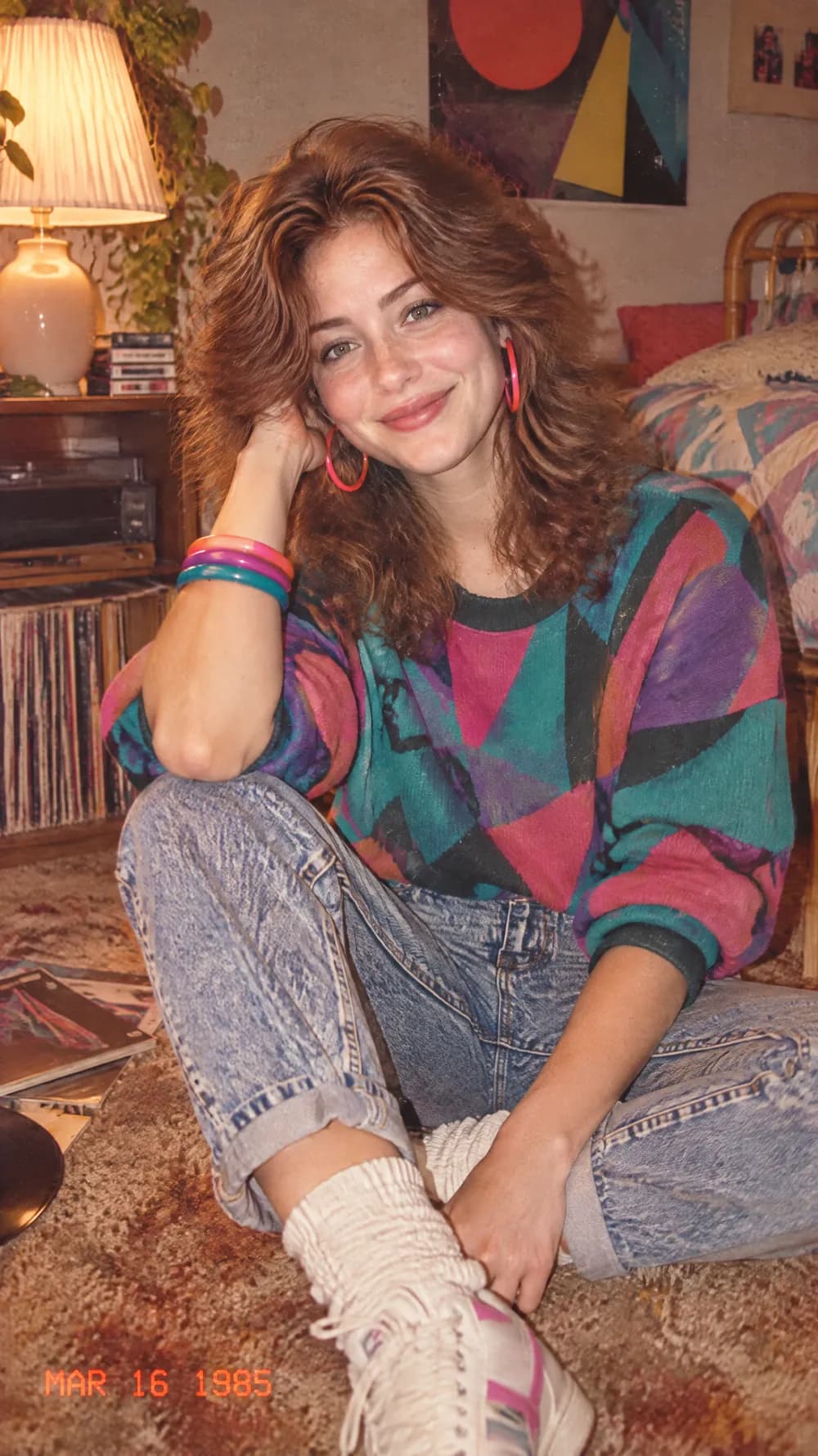 OriginalResult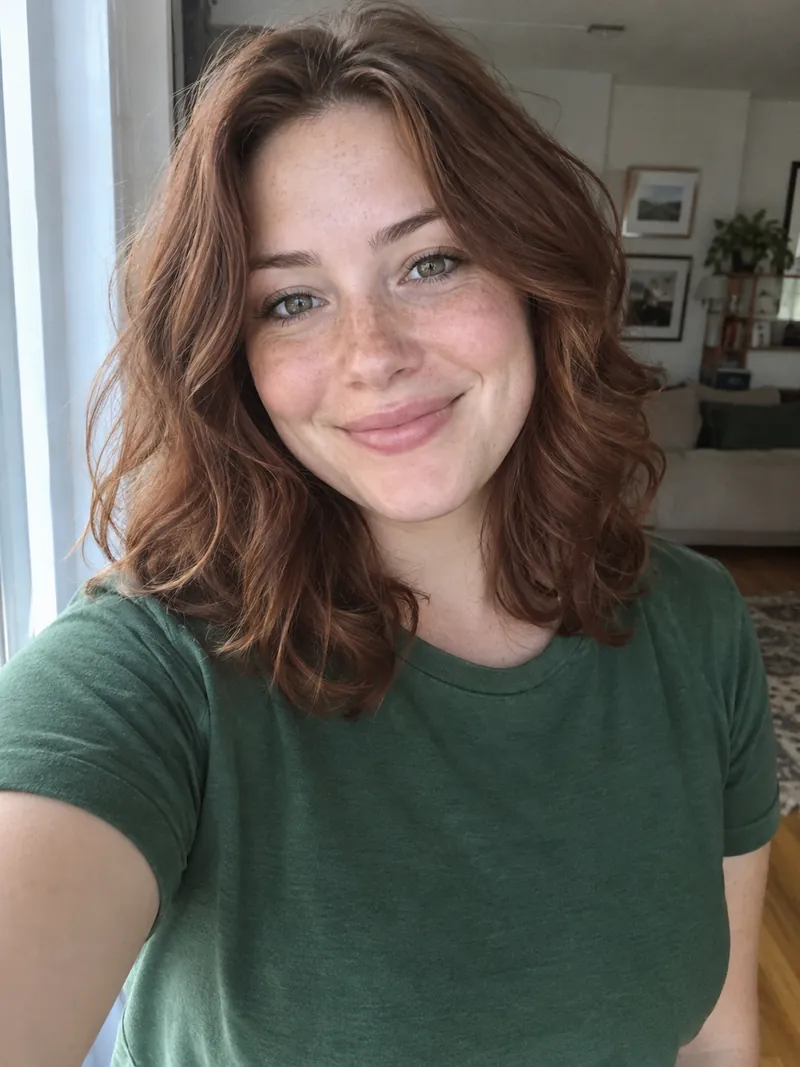
- 70s Slide PortraitTry it →
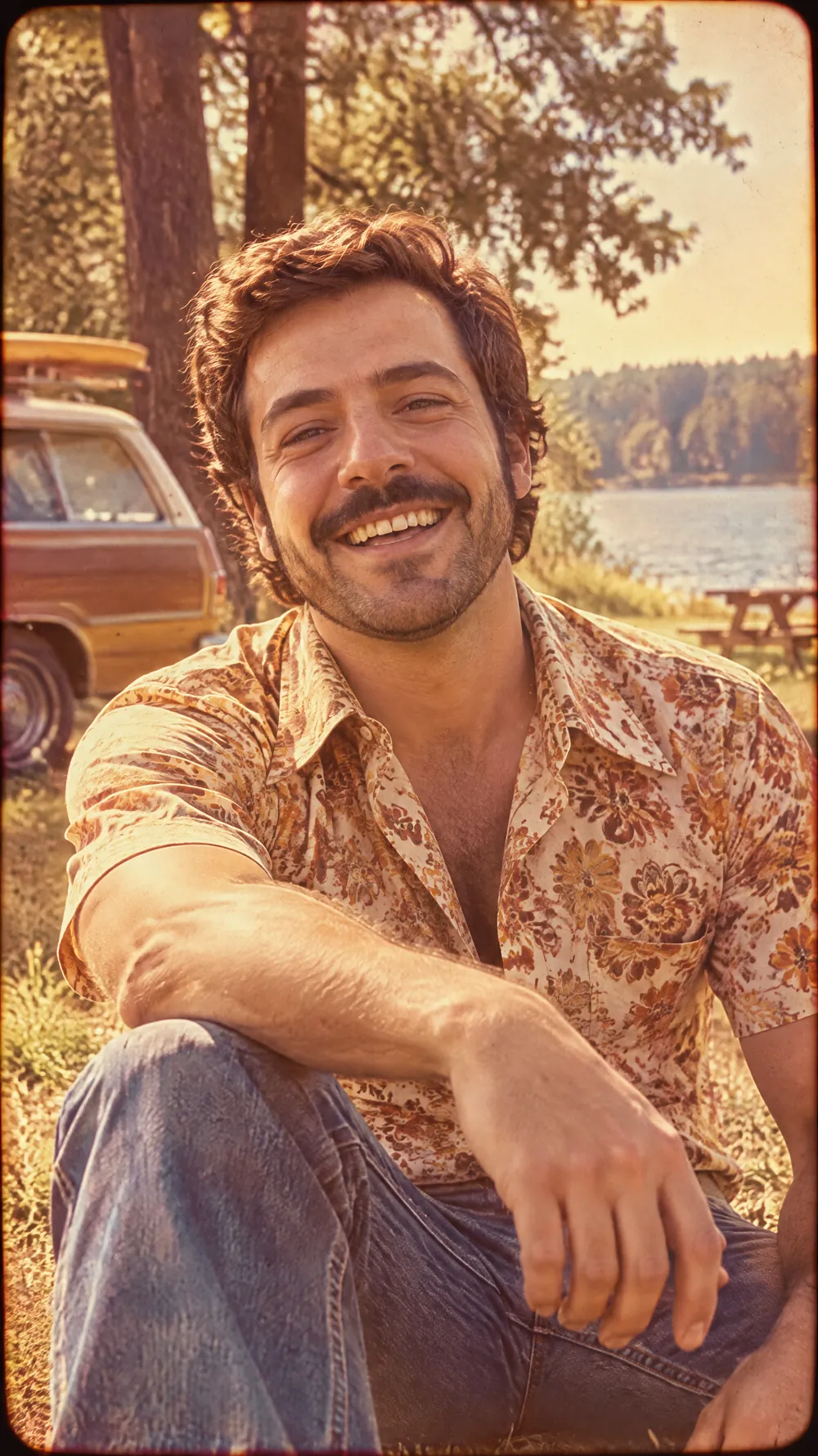 OriginalResult
- Y2K Digital CameraTry it →
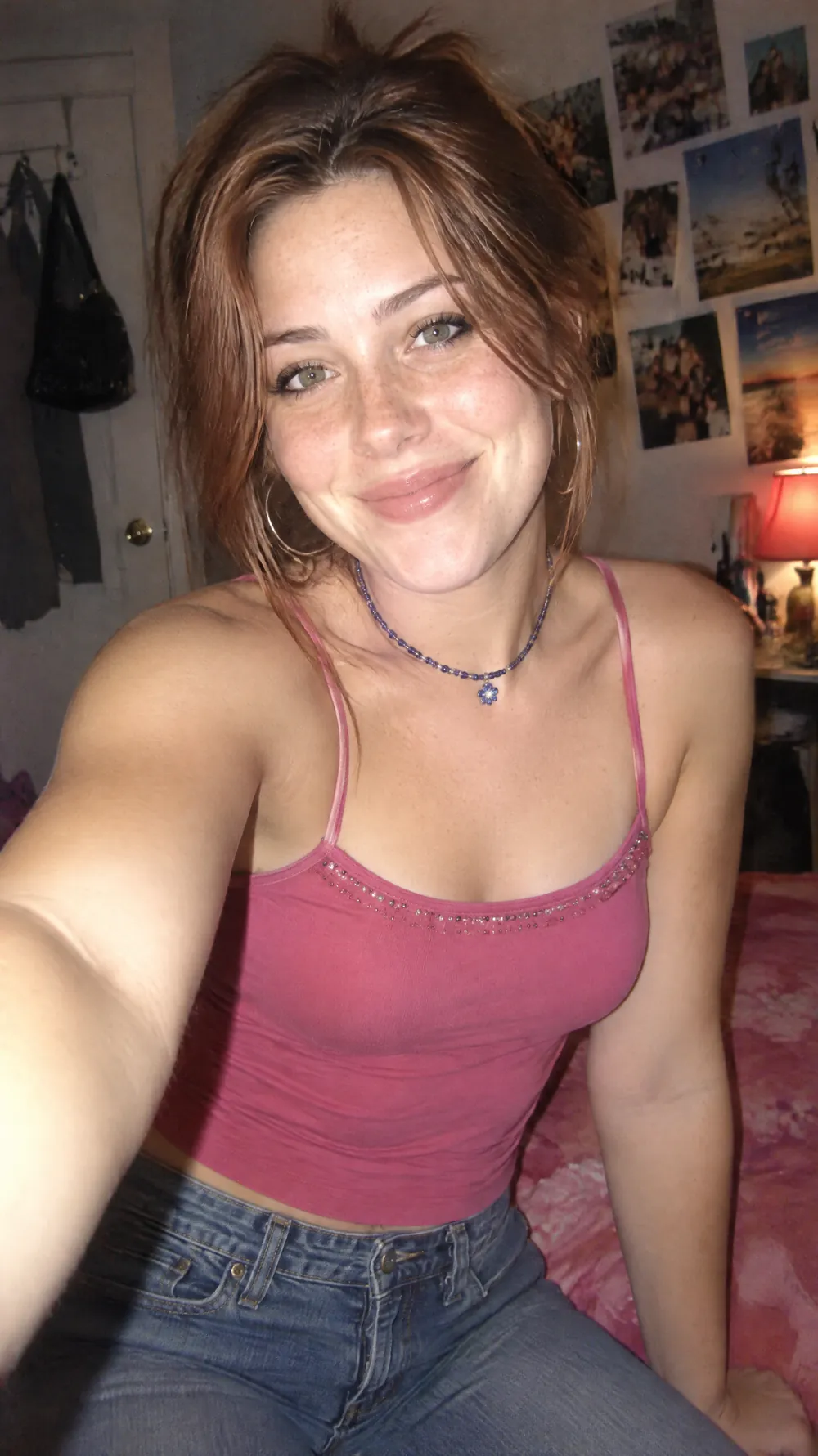 OriginalResult
 - Night Out FlashTry it →
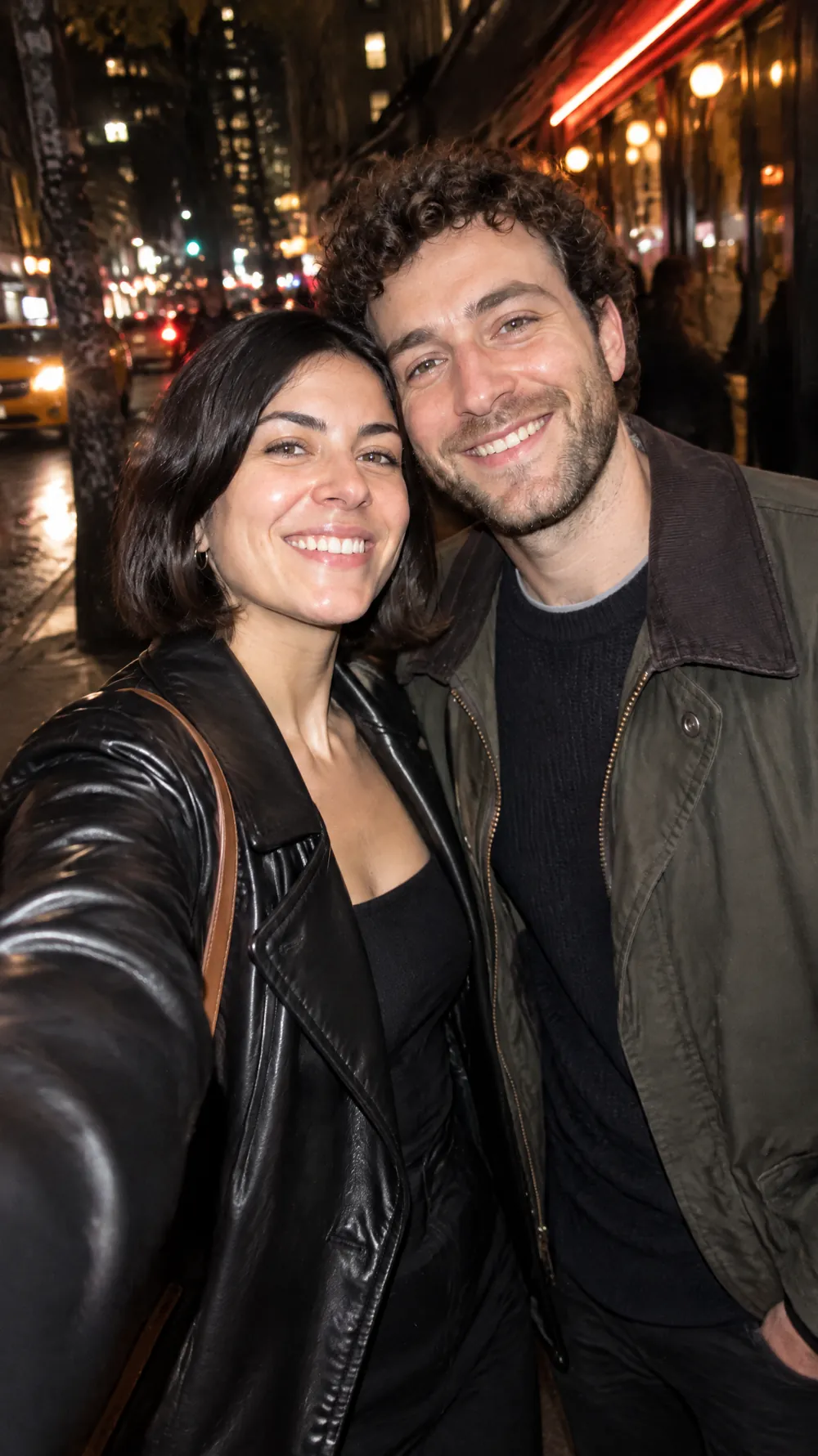 OriginalResult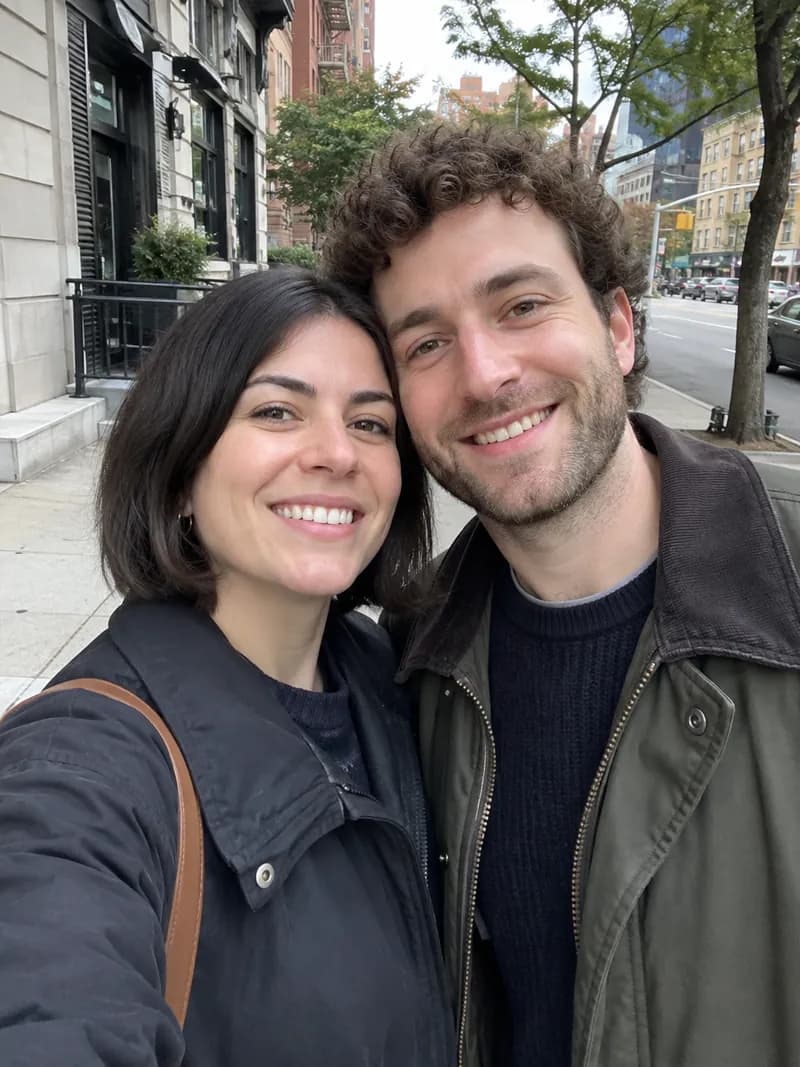
- Photo Booth StripTry it →
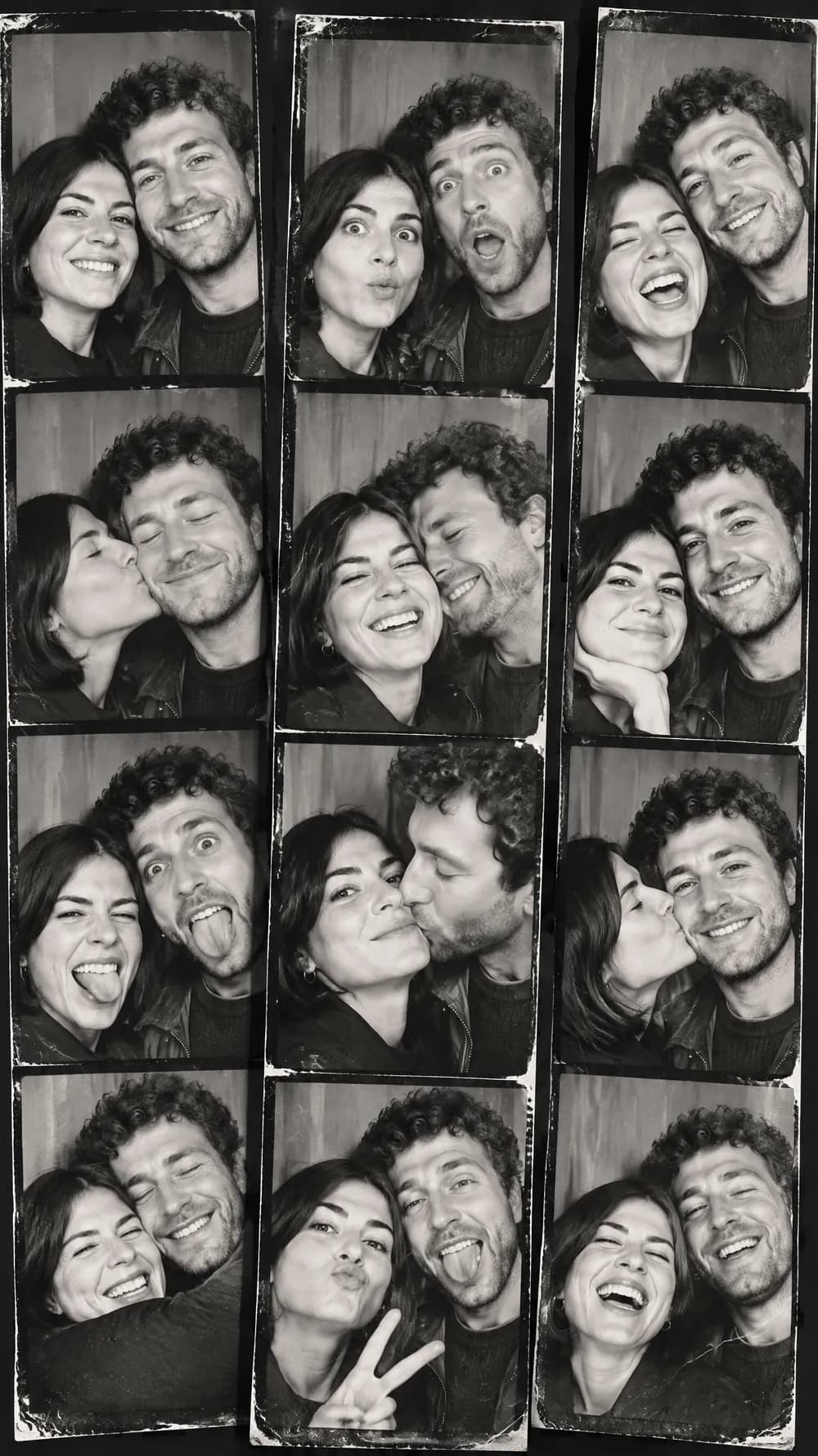 OriginalResult
 - Claymation WorldTry it →
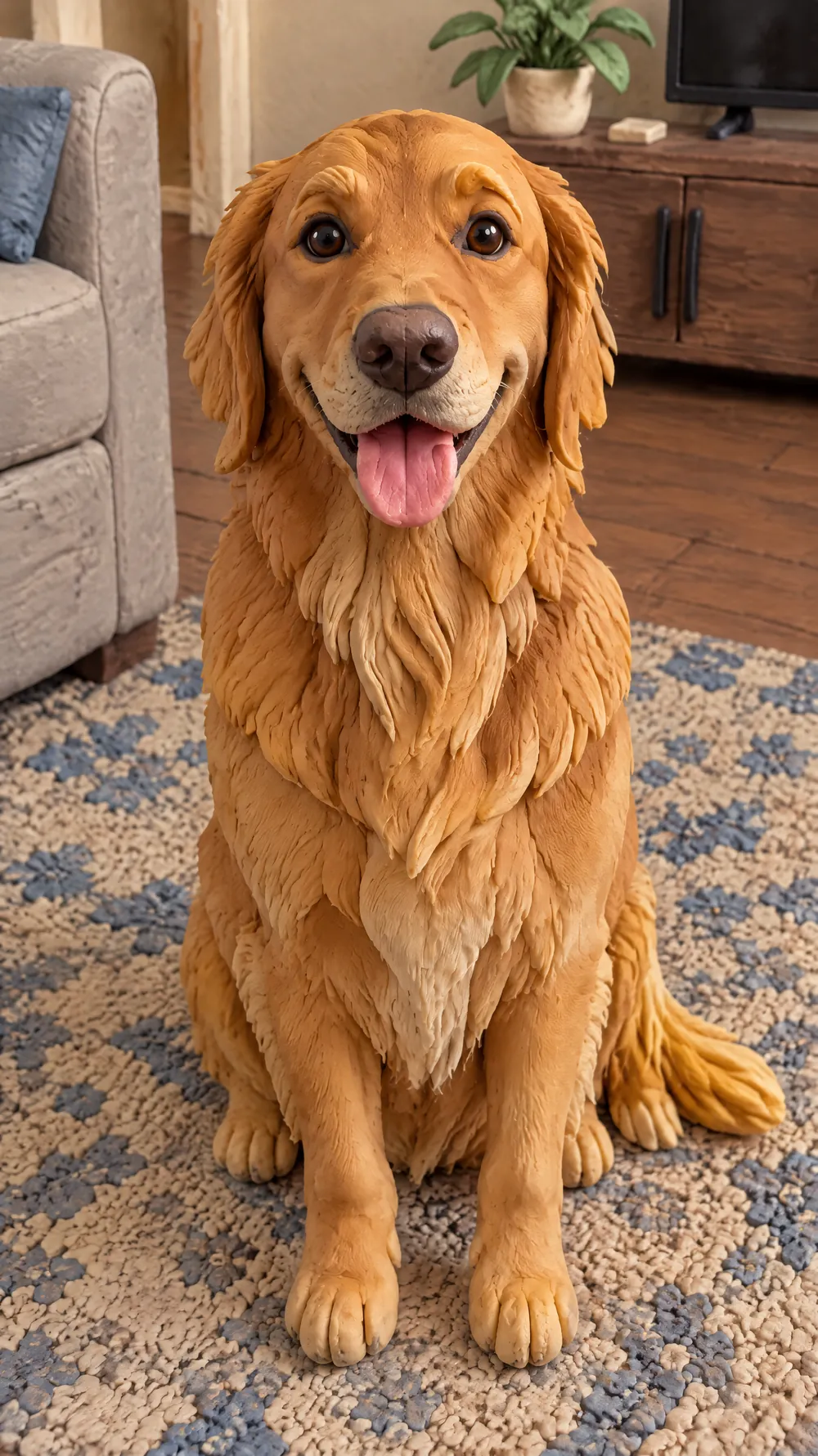 OriginalResult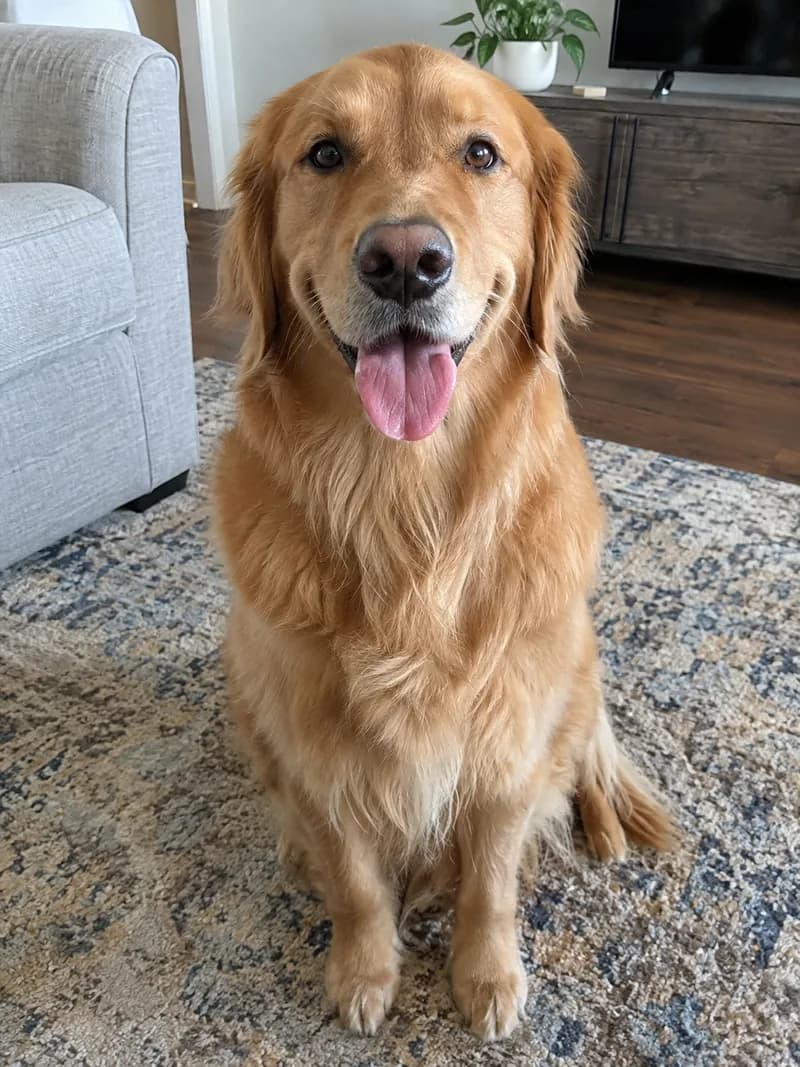
- Felt MiniatureTry it →
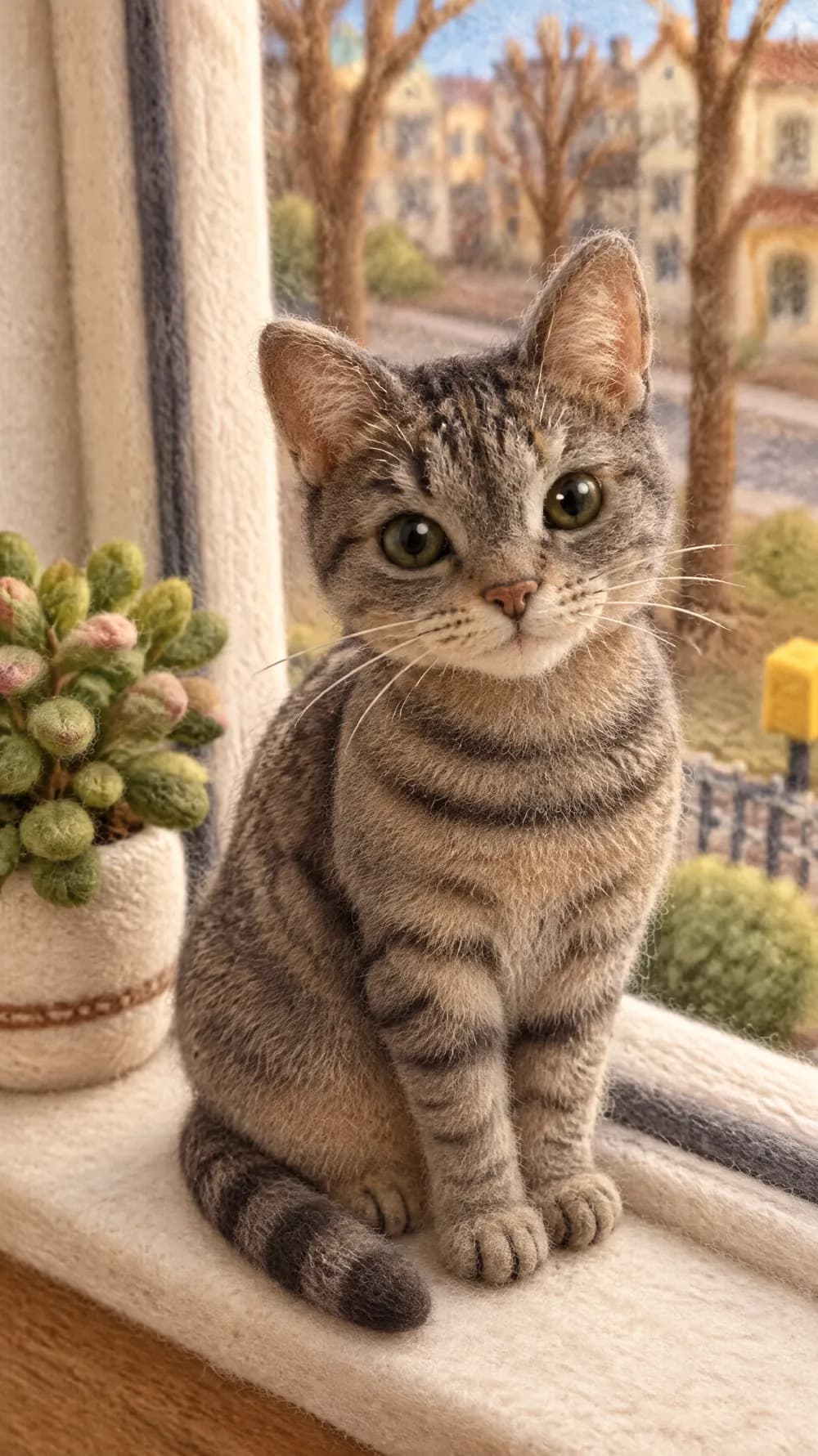 OriginalResult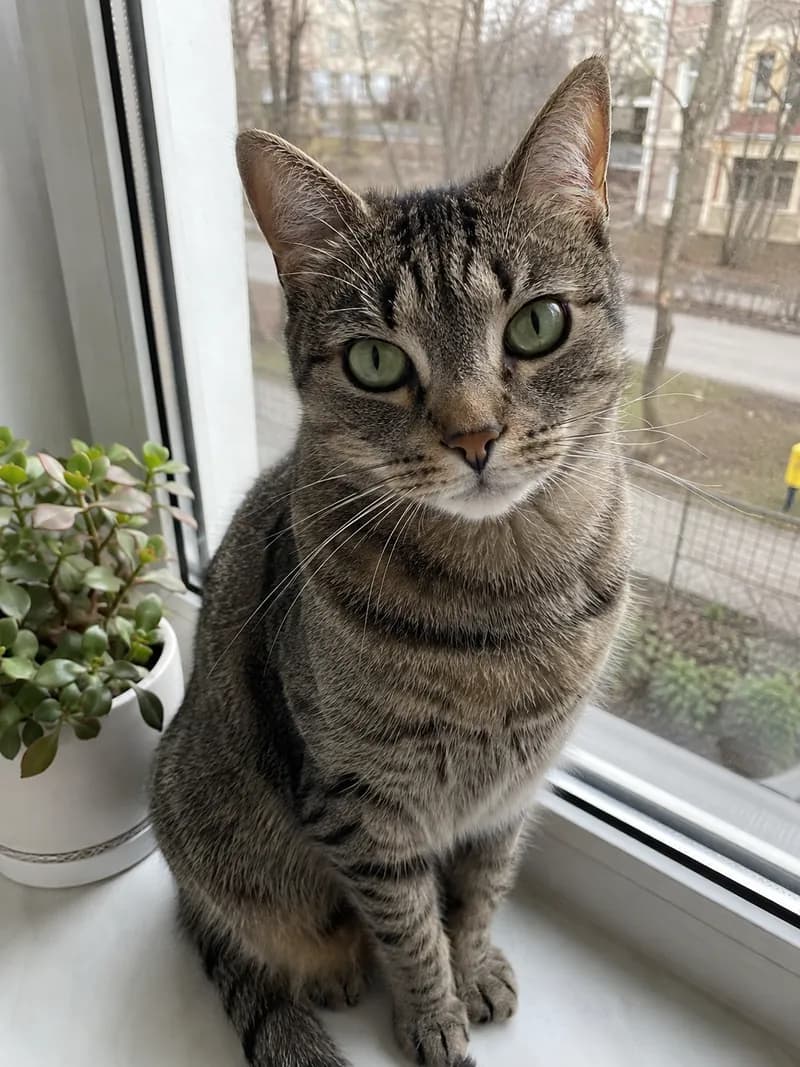
- BobbleheadTry it →
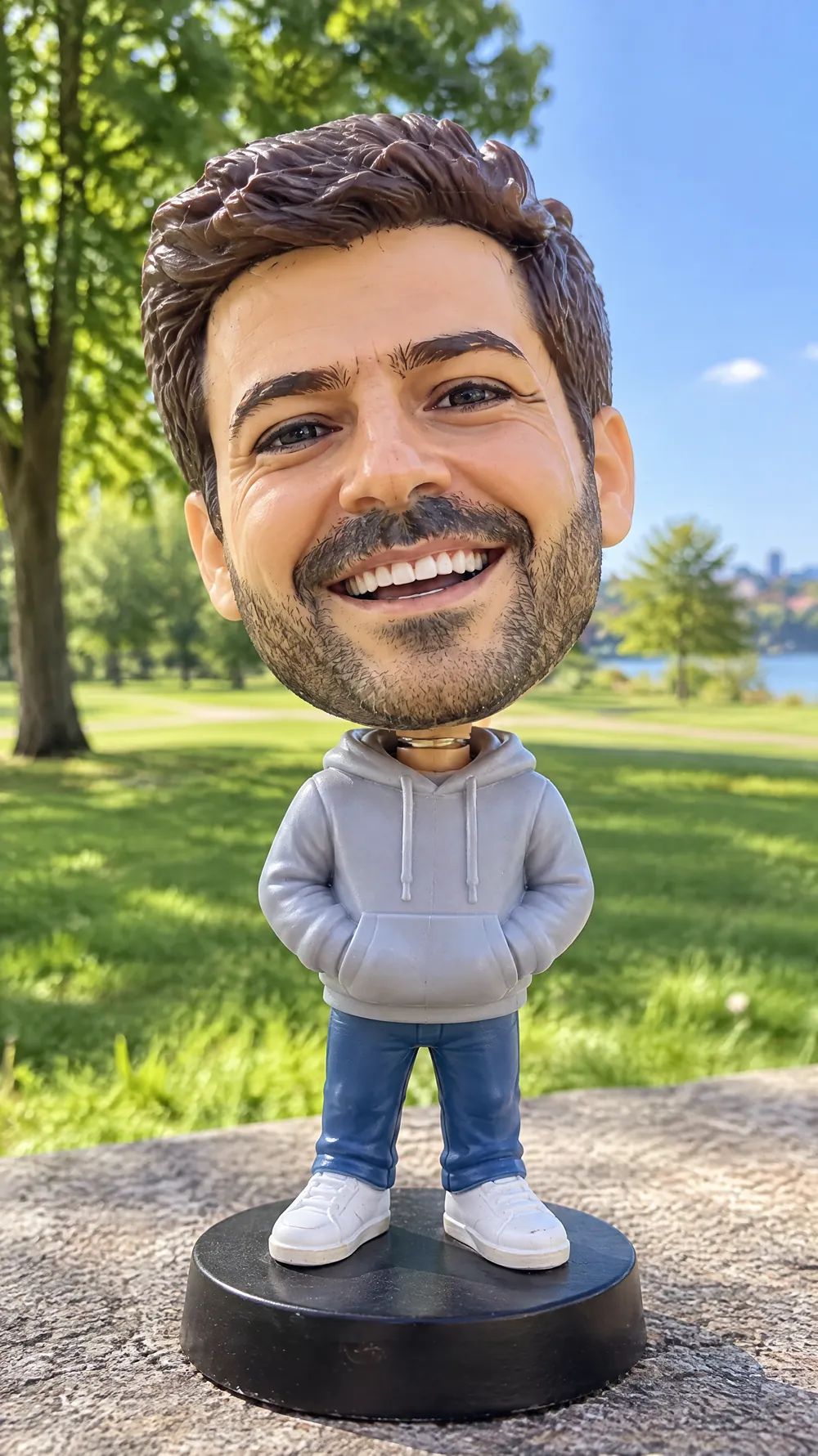 OriginalResult
 - 3D Toy AvatarTry it →
 OriginalResult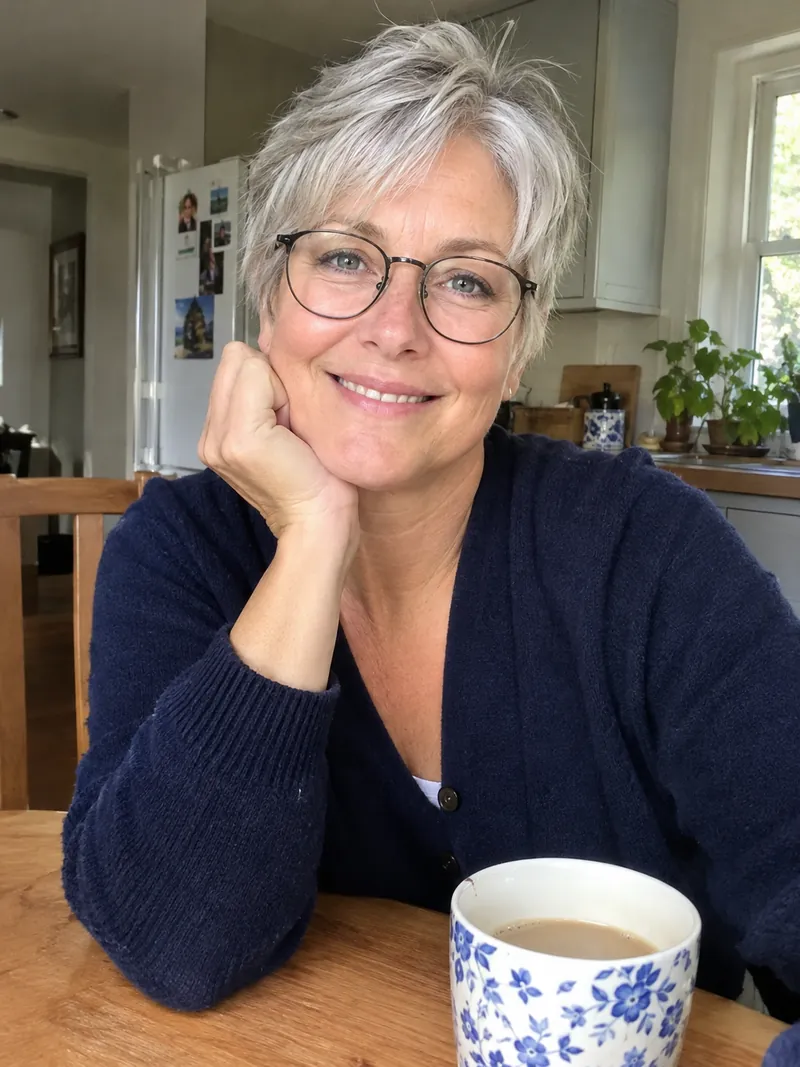
- 16-bit Arcade FighterTry it →
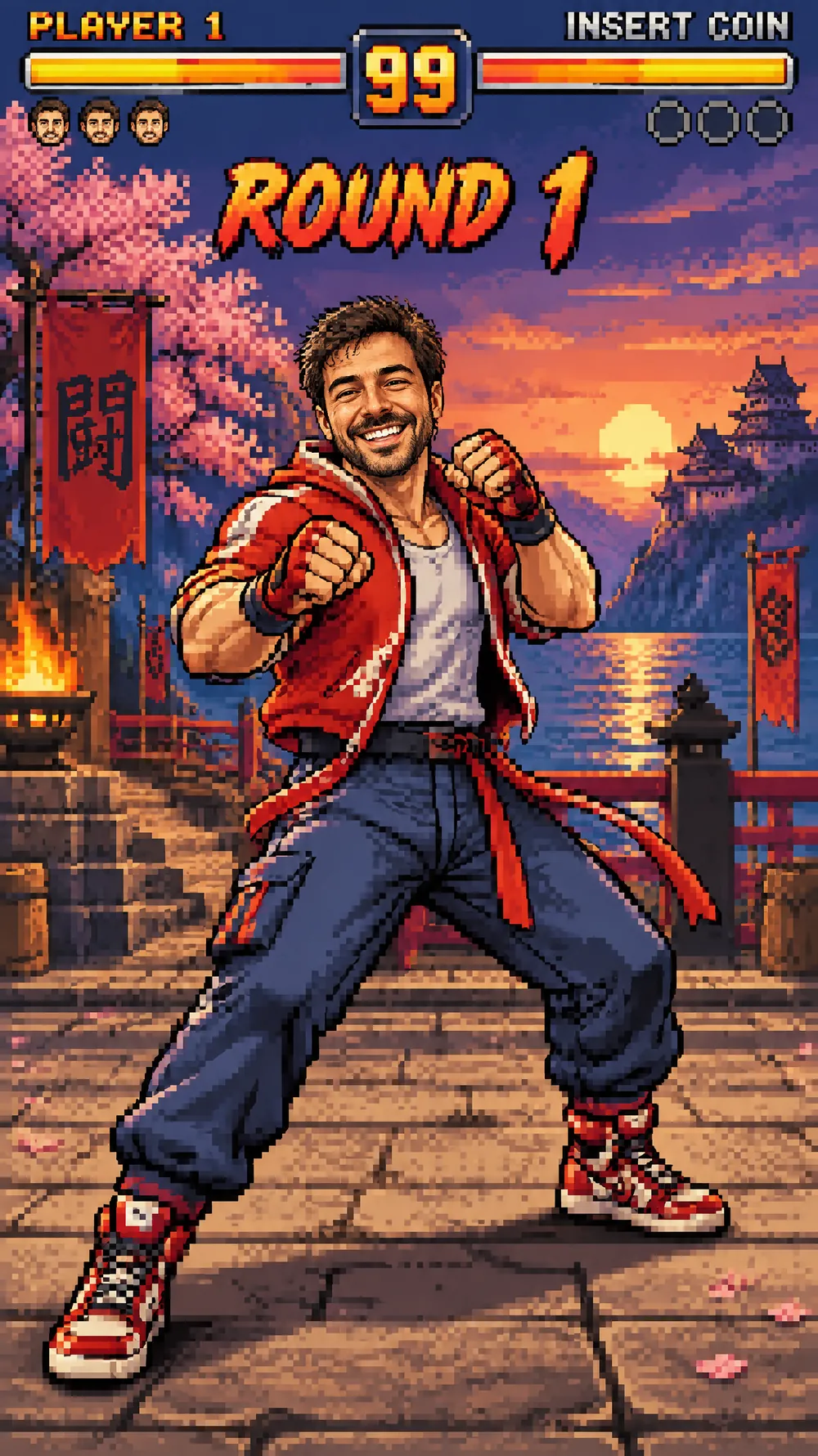 OriginalResult
 - Blueprint PosterTry it →
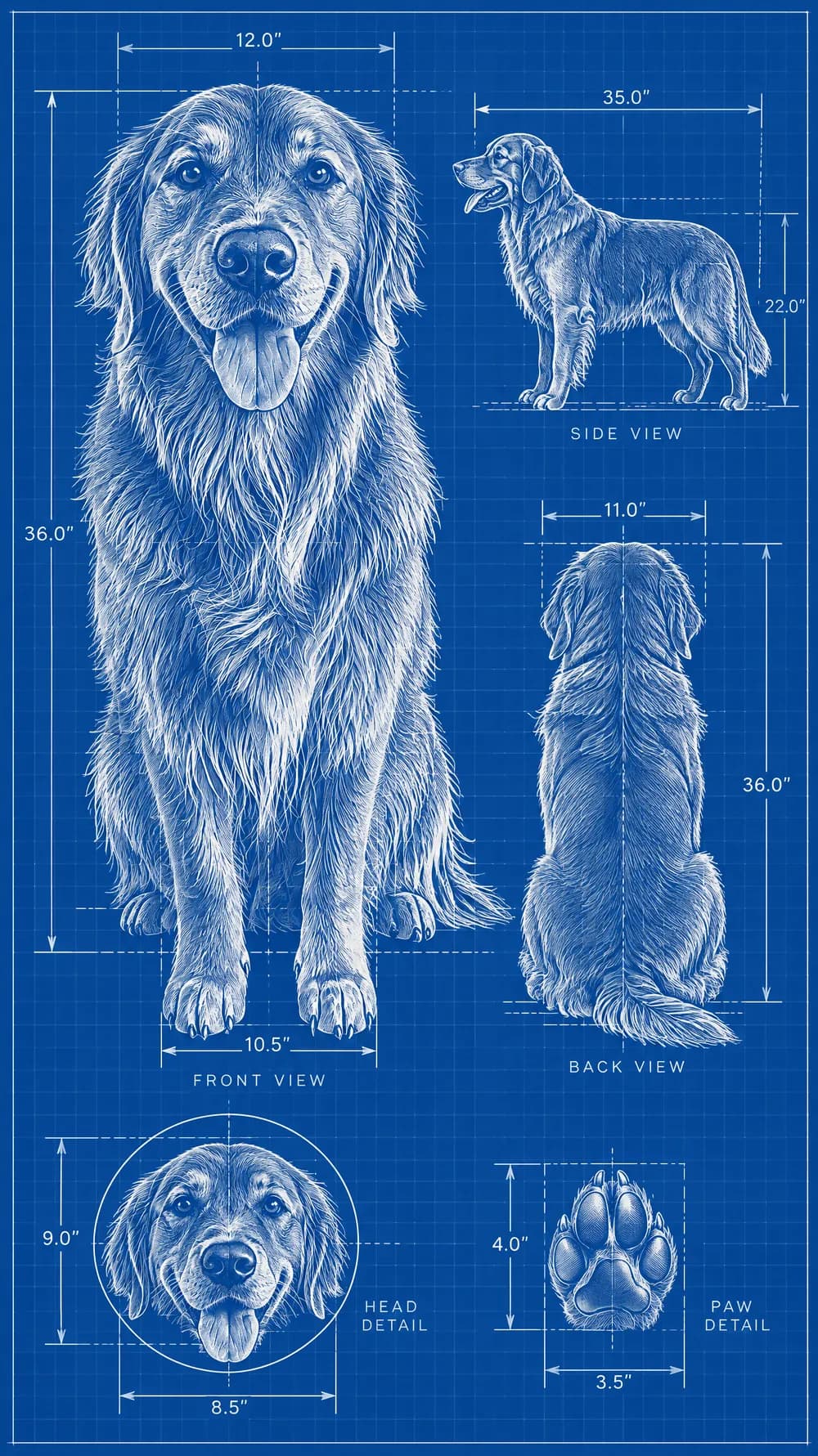 OriginalResult
 - Fantasy NewspaperTry it →
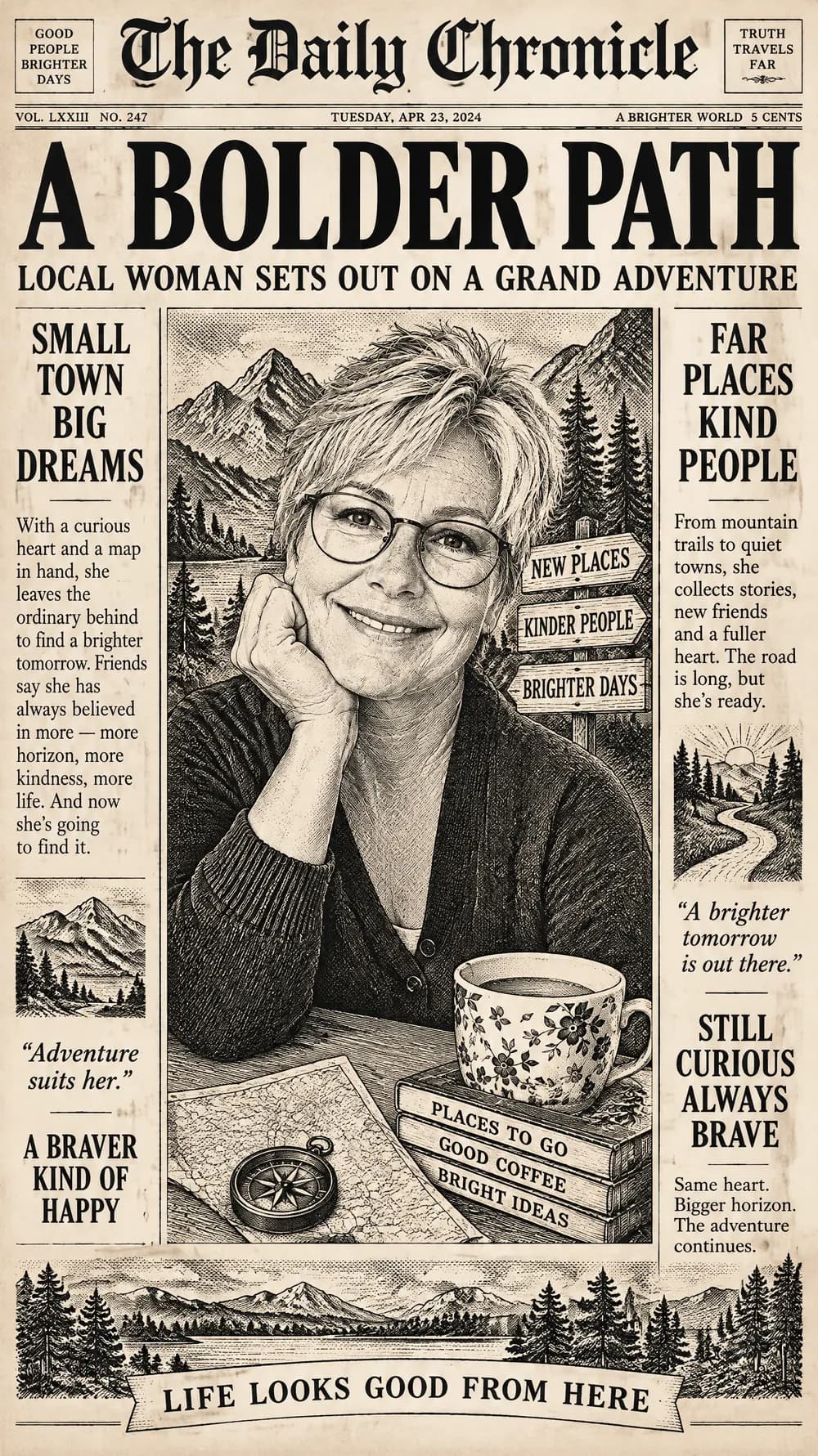 OriginalResult
 - Marble StatueTry it →
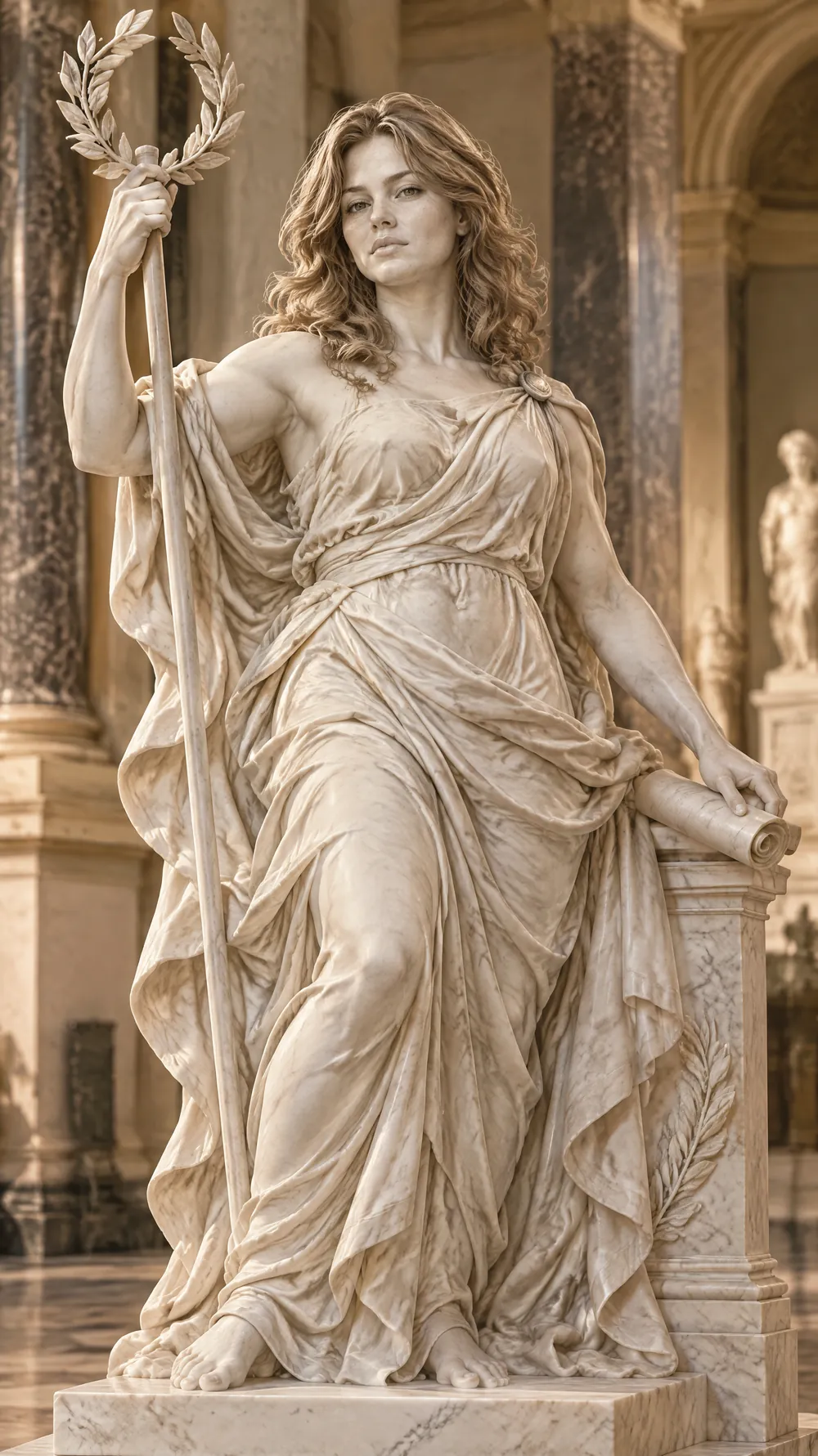 OriginalResult
How the Photo Trend Maker works
You upload one photo, choose one of 13 looks and pick a size. PiCraft sends the photo and a written description of the look to an AI image model, which redraws the whole picture in that style while keeping the subject recognizable. The result comes back as a JPG at the exact pixel size of the shape you chose.
Each look is a different kind of change. The film and camera looks, such as the 80s flashback and the Y2K digital camera, change the clothes, the surroundings and the flaws of the picture. The handmade looks, such as the claymation world and the felt miniature, rebuild the scene from physical materials. The rest turn the photo into a toy, a game screen, a blueprint, a newspaper page or a statue.
The size is chosen before the image is made, not after. A 9:16 image is composed for a tall frame, so the subject is not cut off the way it would be if you cropped a square. Each generation costs one credit and gives a new result, so you can run the same photo through several looks and keep the best one.
What you get with the Photo Trend Maker
A finished JPG at the exact size
1080×1920 for 9:16, 1000×1500 for 2:3, 1080×1440 for 3:4 or 1080×1080 for 1:1. The image is generated for that shape first and then cut to the exact pixel size.
13 distinct looks
Camera looks, handmade looks and game, print and art looks in one form. The photo trends category shows how they group together.
A subject that stays recognizable
The instructions ask the AI to keep face shape, skin tone, age and hair color, and to keep pets and objects recognizable too.
No prompt to write
Upload, choose and download. The wording behind each look is already written and tested, so you never have to describe grain, lighting or materials yourself.
A page for every look
Each look has its own page with examples, best uses and tips, so you can see what to expect before you spend a credit.
Photo Trend file specs
| Item | Spec |
|---|---|
| Format | JPG, one file per design |
| Vertical 9:16 | 1080×1920 px, the default and the full-screen vertical shape |
| Pinterest Pin 2:3 | 1000×1500 px, the shape Pinterest recommends for Pins |
| Portrait post 3:4 | 1080×1440 px |
| Square 1:1 | 1080×1080 px |
| Source photo | JPG, PNG or WebP, up to 12 MB |
- The image is generated at the shape you pick and then cut to the exact pixel size, so a 9:16 design is composed for a tall frame rather than cropped from a square.
- Pinterest recommends 2:3 for standard Pins and may cut off taller images in feeds. See the Photo trends category for how the sizes line up with the platforms.
What people use the Photo Trend Maker for
Stories and full-screen vertical posts
Choose 9:16 for stories, reels covers and any post that fills a phone screen. The subject is composed for a tall frame instead of being squeezed in afterwards.
Pinterest boards
Choose 2:3 to match the shape Pinterest recommends for standard Pins. Trend looks group naturally into boards, such as retro portraits, toy versions of your pets or handmade scenes.
Profile pictures and avatars
A 3D toy avatar or a bobblehead in the square size makes a profile picture that still looks like you without being a plain selfie.
Pet photos and small gifts
A marble statue or a felt miniature of a dog or a cat makes a funny card, a mug design or a message for a friend who loves their pet.
Invitations and group chats
A fantasy newspaper front page or a photo booth strip works as a funny invitation header, a birthday surprise or a gift for a group chat.
Tips for better results
- 1
Start with a sharp, evenly lit photo
Window light and daylight work best. Blurry, very dark or heavily filtered photos give the AI little to hold on to, and the result drifts further from the original.
- 2
Make the face or the pet large
Close crops and waist-up shots keep the likeness better than a wide scene where the subject is small. Crop the photo first if you need to.
- 3
Choose the size first
The size changes how the image is composed. Pick 9:16, 2:3, 3:4 or 1:1 before you create instead of cropping a finished image, which can cut off hands or heads.
- 4
Match the look to the photo
Camera looks suit casual, well-lit photos with clothes and a background to restyle. Handmade and toy looks suit close portraits and pets. The blueprint poster suits one clear subject standing alone.
- 5
Try one photo in three looks
Every generation is new, so running the same photo through three different looks is the fastest way to find the one that suits the person or the pet.
- 6
Read the text before you post
Some looks draw short words into the image, such as a date stamp or a headline. AI can misspell them, so proofread and generate again if a letter is wrong.
- 7
Expect a stylized likeness
A bobblehead or a clay figure is supposed to look like a toy, not a passport photo. Judge the result by whether friends would recognize you, not by whether every detail matches.
Choosing a look
Each look changes the materials, the color and the mood of the picture. Use this as a quick guide to which one fits your photo and where you plan to post it.
- 80s Flashback
- Faded warm film, flash glare, period clothes and an orange date stamp. Best for casual selfies and group photos.
- 70s Slide Portrait
- Sun-faded color, soft grain and a vignette, like an old family slide. Best for relaxed, outdoor portraits.
- Y2K Digital Camera
- Harsh flash, slightly blown highlights and early-2000s outfits. Best for friends, parties and mirror-style snapshots.
- Night Out Flash
- Bright on-camera flash against a dim city background. Best for dressed-up portraits and night-out photos.
- Photo Booth Strip
- Black-and-white strips with playful poses and heavy contrast. Best for couples, friends and funny group photos.
- Claymation World
- Matte modelling clay with fingerprints and tool marks. Best for portraits, pets and anything with a clear outline.
- Felt Miniature
- Needle-felted wool figures in a small diorama. Best for pets, couples and cozy scenes.
- Bobblehead
- A plastic figure with an oversized head on a black base. Best for selfies and gifts.
- 3D Toy Avatar
- A glossy designer-toy head with sunglasses against a blue sky. Best for profile pictures.
- 16-bit Arcade Fighter
- A pixel-art fighter on a side-view stage with a health bar. Best for gamers and humorous posts.
- Blueprint Poster
- White technical lines on cobalt blue with detail views. Best for a single clear subject such as a pet or a person.
- Fantasy Newspaper
- An engraved portrait on a vintage front page with headlines. Best for birthday jokes and invitations.
- Marble Statue
- A neoclassical figure carved in white marble in a museum hall. Best for dramatic portraits and pets.
Before you post or share
- Compare the result with your original. If hair color, age, glasses or skin tone changed in a way you do not like, generate again.
- Zoom in on faces, hands and any small accessories. These are the places where AI most often goes wrong.
- Read every word the look drew into the image, including date stamps, labels and headlines.
- Check that the size matches where you will post it: 9:16 for stories, 2:3 for Pinterest, 3:4 for portrait posts and 1:1 for squares.
- Look at the background for personal details such as house numbers, license plates or documents before you post a photo of your home.
- Get permission from anyone who can be recognized in the picture before you publish it.
- Upload the downloaded JPG itself instead of a screenshot, so the platform does not compress the image twice.
What the Photo Trend Maker can't do
- AI likeness is never exact. Small details such as freckles, jewelry or teeth can change, and groups of people drift more than a single face does.
- The result is a flat JPG, not layers. To change something, pick the look and size again and generate a new image.
- Words drawn into the image, such as a date stamp or newspaper headlines, can be misspelled, so always proofread.
- Hands, fingers and small accessories can come out wrong, especially in looks that draw many small figures, such as the photo booth strip.
- Wide photos with a tiny subject give weaker results than close portraits, so crop first if the face or pet is small.
- The size is fixed before the image is made. Switching from 9:16 to 1:1 means generating a new design, which uses another credit.
Official guidelines
The sizes and rules above follow these official pages. Platforms change their requirements, so check the source before you submit your file.
Frequently asked questions
Do I need to write a prompt?+
No. You upload a photo, choose a look and choose a size. PiCraft writes the instructions for the AI, including how to keep the subject recognizable.
Which photos work best?+
A sharp, evenly lit photo where the face or the pet is large and clearly visible. Windowlight selfies, portraits and pet photos work well. Heavily filtered, blurry, very dark or tiny-subject photos give weaker results.
Will the result still look like me?+
The maker is built to keep your face shape, skin tone, age and hair color, but AI likeness is never exact. Looks that rebuild you as an object, such as the bobblehead or the clay figure, keep the spirit more than the exact face. If a result is off, generate again.
Which size should I choose?+
Use 9:16 for full-screen vertical images, 2:3 for Pinterest Pins, 3:4 for portrait posts and 1:1 for squares. The size changes how the image is composed, so pick it before you create instead of cropping afterwards.
Can I upload a photo of someone else?+
Only upload photos you own or have permission to use, and ask before you restyle a recognizable person. Do not upload photos of children unless you are their parent or guardian.
What happens to the photo I upload?+
Your photo is sent to our AI provider to create the image and is not shown to other visitors. The Privacy Policy lists the providers we use and how long data is kept.
Can I use the results commercially?+
Yes, for personal and commercial projects, as long as your input does not infringe anyone else's rights. Check trademarks, and get permission from any person who can be recognized in the photo before you publish a design.
Why is the text in some looks wrong?+
The 80s flashback date stamp, the arcade fighter, blueprint and newspaper looks can draw short words into the image. AI can misspell them, so read the result and generate again if something is off.
How many credits does a design cost?+
One credit per design, whichever look and size you choose. If a generation fails, the credit is returned automatically.
What if I don't like the result?+
Generate again. Each attempt is a new design, so the same photo and look can give a different pose, background or expression.
Photo trend looks
Each style has its own page with examples, ideas for what to write and answers to common questions. Open one to start with that style already selected.
Last updated:
More makers
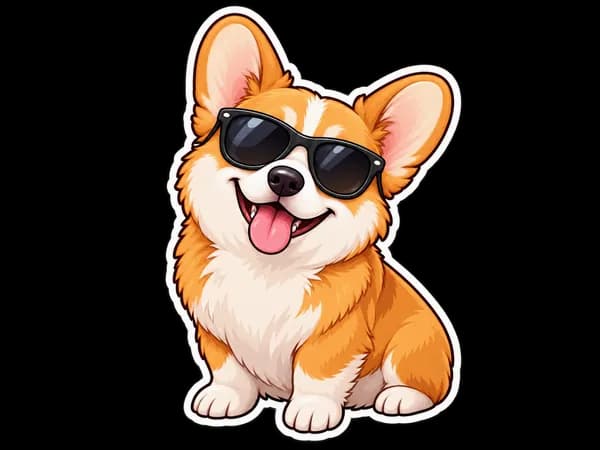
Sticker Maker
Die-cut sticker designs with a white border, exported as transparent PNGs.
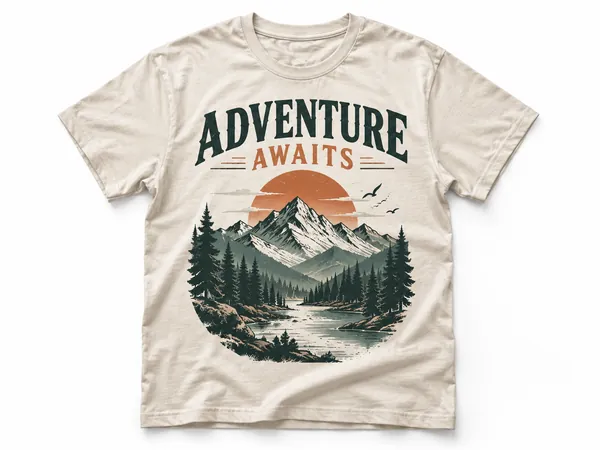
T-Shirt Design Maker
Print-on-demand t-shirt graphics as transparent 4500×5400 PNGs.

YouTube Thumbnail Maker
Click-worthy 1280×720 thumbnails with bold headline text, optionally featuring your face.